Note
Access to this page requires authorization. You can try signing in or changing directories.
Access to this page requires authorization. You can try changing directories.
Azure Chaos Studio is a managed service for chaos engineering and Azure resilience testing. Use Chaos Studio Workspaces, the current resource model, to discover resources, run Scenarios that simulate outages, and review Scenario reports. Workspaces is replacing Experiments (classic), the legacy resource model. If you use Experiments (classic), see Move from Experiments (classic) to Chaos Studio Workspaces.
Important
Chaos Studio Workspaces and Scenarios are in public preview. Microsoft provides this preview "as is" and "as available," and it isn't covered by service-level agreements or limited warranty. Microsoft provides customer support for the preview on a best-effort basis. This preview isn't meant for production use. For more information, see the following articles:
Chaos Studio Workspaces and Scenarios
The fastest way to get started is with a Workspace. A Workspace connects to your Azure environment through a scope (a subscription, resource group, or service group), discovers the resources you deployed, and recommends Scenarios that simulate real outage patterns against those resources.
Workspaces are flexible. You can organize them to fit your team: create one Workspace per application, preproduction environment, team, or compliance boundary. The scope determines which resources the Workspace discovers. Workspace identity and permissions control which resources its Actions can affect.
Each Scenario is a preconfigured resilience test. Instead of assembling individual Actions manually, you select a Scenario like Compute Zone Down or DNS Outage, and Chaos Studio handles the Action composition, resource discovery, and sequencing. After the run completes, you get a Scenario report, a structured record of what happened. Pair the report with application monitoring to assess recovery.
Available Scenarios cover zone and networking outages, database failovers, cache stampedes, and messaging disruptions. When the built-in templates don't fit your needs, use the Scenario designer to tailor a template into your own saved Scenario. See Scenarios in Azure Chaos Studio for the full catalog.
To create your first Workspace and run a Scenario, see Quickstart: Create a Workspace and run your first Scenario.
Experiments (classic)
Experiments (classic) is the legacy resource model being replaced by Chaos Studio Workspaces. Use it only when you need a generally available model or when the Scenario catalog doesn't yet cover the combination of faults or capability you need. To get started with the move, follow Move from Experiments (classic) to Chaos Studio Workspaces. Microsoft no longer develops features for Experiments (classic) and considers only critical fixes, such as security updates, for backport.
Experiments (classic) supports two types of faults:
- Service-direct: Faults that run directly against an Azure resource through its management API, with no agent required. Examples include shutting down a virtual machine, triggering a SQL Database failover, or flushing a Redis cache.
- Agent-based: Faults that run inside a virtual machine or virtual machine scale set to inject in-guest failures like CPU pressure, memory pressure, or process kills.
Each fault has specific parameters you can configure. When you build an experiment, you define one or more steps that execute sequentially. Each step contains one or more branches that run in parallel. Each branch contains one or more actions, such as injecting a fault or waiting for a specified duration.
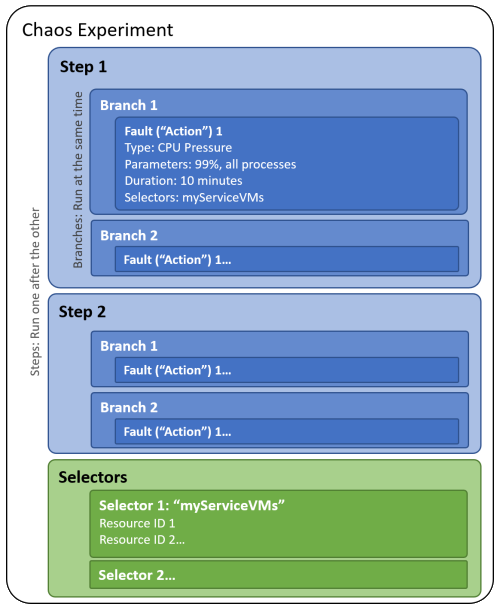
For a walkthrough of the legacy model, see Azure Chaos Studio Experiments (classic).
Chaos Studio AI plugin
The Chaos Studio AI plugin (startchaos) lets you create Workspaces, configure Scenarios, run them, and analyze the results through a conversational interface. The plugin works as both an interactive skill for GitHub Copilot CLI and as an MCP (Model Context Protocol) server that autonomous agents can call.
After a Scenario run completes, the plugin's impact analysis tool correlates Azure Monitor metrics, logs, and activity log events with the targeted resources, so you can see which signals moved during the test without building dashboards manually.
For setup instructions and the full tool reference, see the Chaos Studio plugin repository.
When to use Chaos Studio
Chaos Studio fits into several points in your development and operations lifecycle:
- Incident reproduction: After an outage, reproduce the failure pattern to verify that your fixes improve resilience.
- Game days: Before a major event, run Scenarios against a preproduction environment to validate that your systems handle expected failure modes.
- Business continuity testing: Validate failover behavior and recovery time objectives for disaster recovery plans.
- Continuous validation: Run Scenarios or experiments as deployment gates in your CI/CD pipelines to catch resilience regressions before they reach production.
- Compliance evidence: Use Scenario reports to help support evidence requirements for operational resilience frameworks such as DORA.
The following video provides more background about Chaos Studio:
Report issues and request features
Azure Chaos Studio is developed in the open. To report a bug, request a feature, or ask a question about Workspaces, Scenarios, or the Azure CLI extension, open an issue in the Chaos Studio repository on GitHub. By filing an issue, you can track its progress and see requests from other customers.
Next steps
- Azure Chaos Studio Workspaces overview.
- Azure Chaos Studio Workspaces quickstart.
- Azure Chaos Studio Scenarios and outage templates.
- Workspaces permissions and identity.
- Azure Chaos Studio Scenario reports.
- Compare Workspaces and Experiments (classic).
- Move from Experiments (classic) to Chaos Studio Workspaces.
- Chaos engineering in Azure.