Note
Access to this page requires authorization. You can try signing in or changing directories.
Access to this page requires authorization. You can try changing directories.
To send data to Microsoft Fabric Real-Time Intelligence from Azure IoT Operations, you can configure a data flow endpoint. With this configuration, you can specify the destination endpoint, authentication method, topic, and other settings.
Prerequisites
- An instance of Azure IoT Operations deployed in a Kubernetes cluster. For more information, see Deploy Azure IoT Operations.
The Azure CLI installed on your development machine. Check Available Azure CLI extensions for the minimum required version to use the azure-iot-ops extension. Use
az --versionto check your version andaz upgradeto update if necessary. For more information, see Install the Azure CLI.The Azure IoT Operations extension for the Azure CLI. Use the following command to add the extension or update it to the latest version:
az extension add --upgrade --name azure-iot-ops
- A Fabric workspace. The default my workspace isn't supported.
- An eventstream.
- A custom endpoint as a source.
Note
An eventstream supports multiple input sources, which includes Azure Event Hubs. If you have an existing data flow to Event Hubs, you can bring that data flow into Fabric as shown in the quickstart: Get insights from your processed data. This article shows you how to flow real-time data directly into Fabric without any other hops in between.
The Azure CLI examples in this article use environment variables so that you can set each value once and then copy and paste the commands as-is. If you're using the Azure IoT Operations Codespaces environment from the quickstart, these variables are already set for you and you can skip this step. Otherwise, set the following environment variables in your shell before you run the commands.
The following scripts set the most commonly used environment variables:
| Environment variable | Description |
|---|---|
SUBSCRIPTION_ID |
The ID of the subscription that contains your Azure IoT Operations instance. |
RESOURCE_GROUP |
The name of the resource group that contains your Azure IoT Operations instance. |
AIO_INSTANCE_NAME |
The name of your Azure IoT Operations instance. To list your instances, run az iot ops list -o table. |
CLUSTER_NAME |
The name of the Azure Arc-enabled Kubernetes cluster that hosts your instance. |
LOCATION |
The Azure region to use for new resources, for example eastus. |
SUBSCRIPTION_ID=<subscription-id>
RESOURCE_GROUP=<resource-group-name>
AIO_INSTANCE_NAME=<instance-name>
CLUSTER_NAME=<cluster-name>
LOCATION=<region>
You only need to set the variables that this article uses. This article might use additional environment variables for resource names that you choose. The article explains how to set them where they're introduced.
This article also uses the following environment variables for values that you choose: ENDPOINT, BOOTSTRAP_SERVER_ADDRESS, SECRET_NAME, CONNECTION_STRING_PRIMARY_KEY, CLIENT_ID, TENANT_ID, and SASL_TYPE. Set each one before you run the related commands.
Retrieve custom endpoint connection details
Retrieve the Kafka-compatible connection details for the custom endpoint. The connection details are used to configure the data flow endpoint in Azure IoT Operations.
This method uses a managed identity to authenticate with the eventstream. Use either system-assigned managed identity or user-assigned managed identity when you configure the data flow endpoint.
Important
If you're using a data flow graph and a user-assigned managed identity, make sure to assign the identity with the --usage wasm-graph flag when you run the az iot ops identity assign command. This ensures that the identity has the correct permissions for data flow graphs.
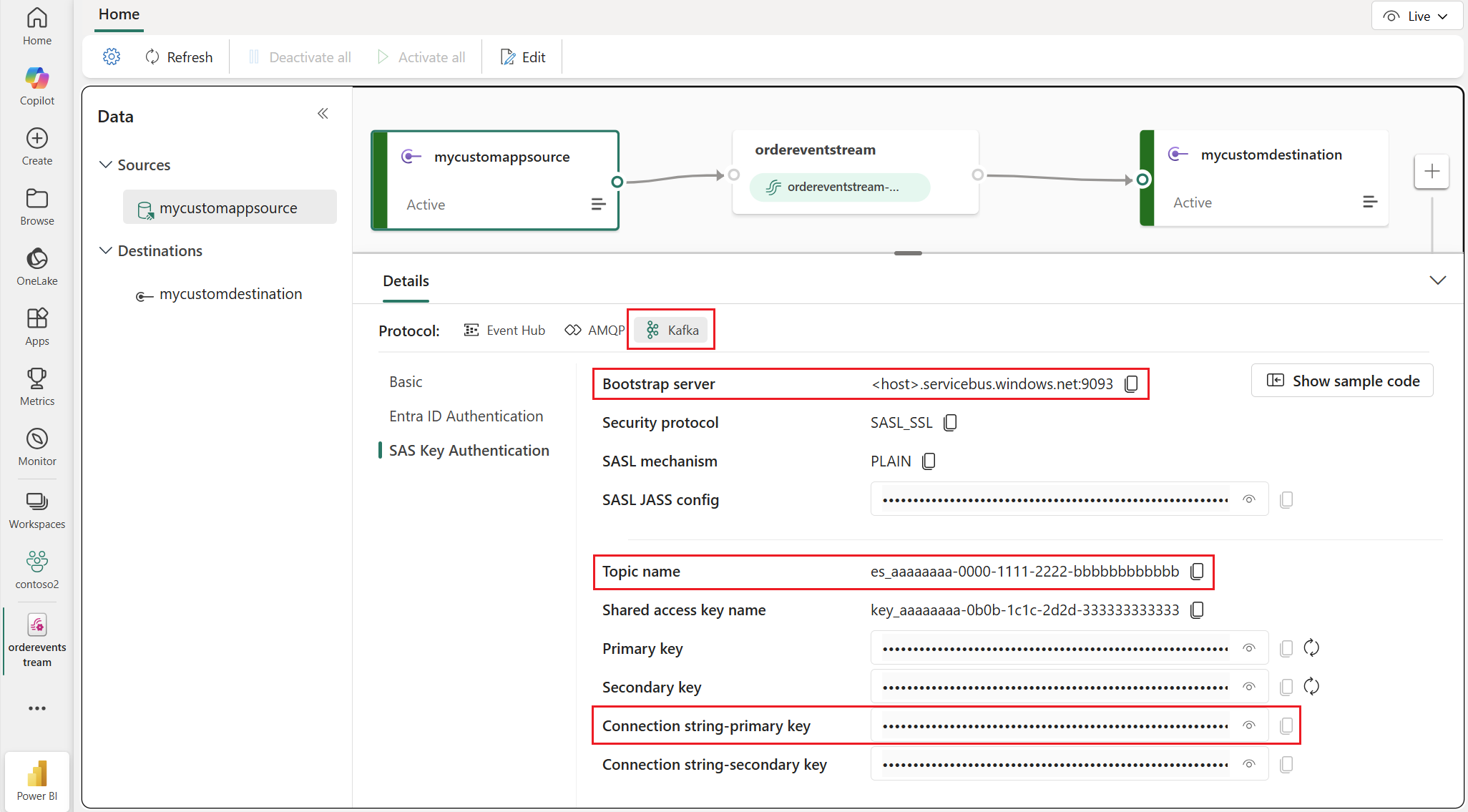
Go to the connection details in the Fabric portal under the Sources section of your eventstream.
In the Details pane for the custom endpoint, select the Kafka protocol.
Select the Entra ID Authentication section to view the connection details.
Copy the details for the Bootstrap server and Topic name values. You use these values to configure the data flow endpoint.
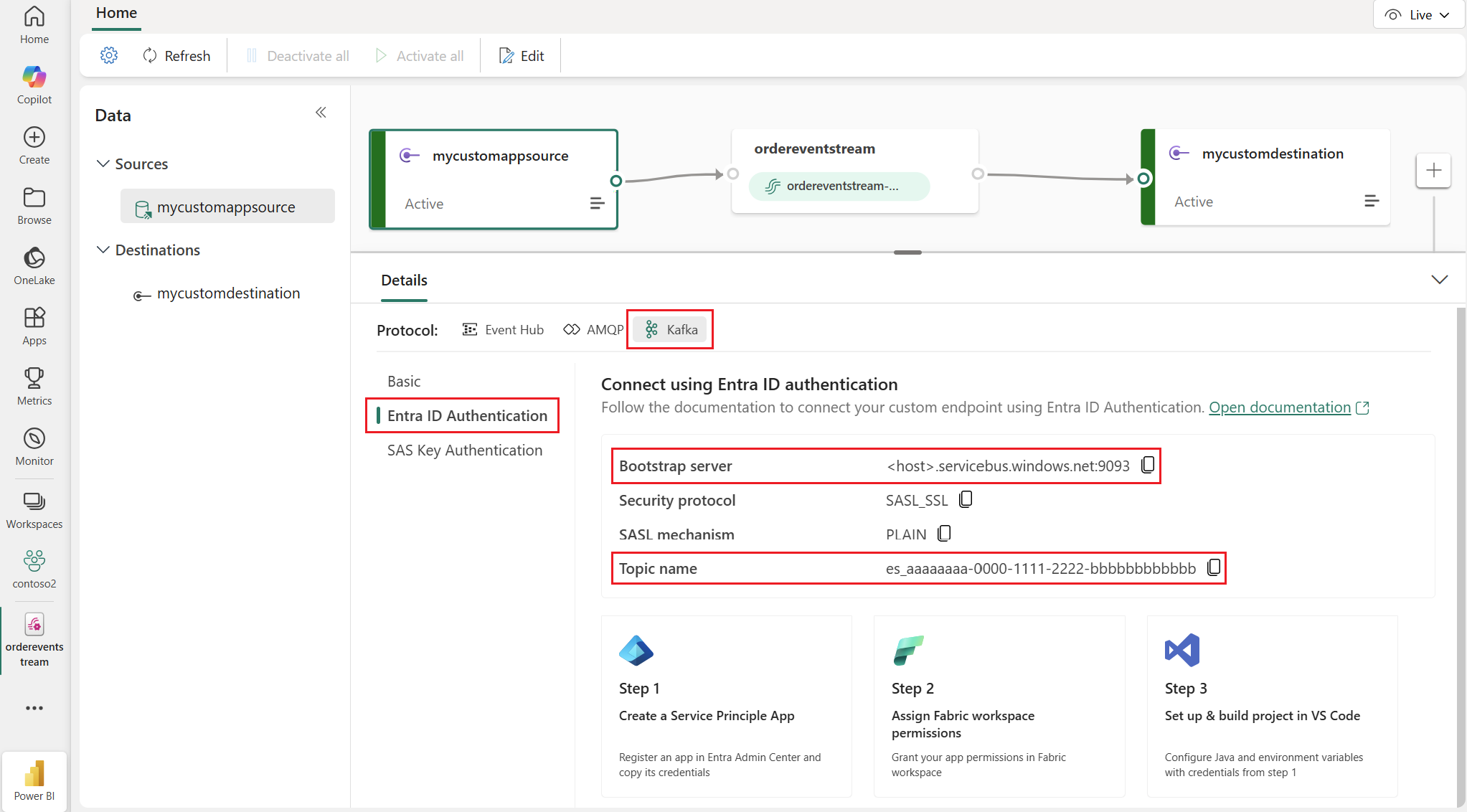
Settings Description Bootstrap server The bootstrap server address is used for the host name property in the data flow endpoint. Topic name The event hub name is used as the Kafka topic and is in the format es_aaaaaaaa-0000-1111-2222-bbbbbbbbbbbb.
Create a Fabric Real-Time Intelligence data flow endpoint
In the Azure IoT Operations experience portal, select the Data flow endpoints tab.
Under Create new data flow endpoint, select Microsoft Fabric Real-Time Intelligence > New.
Enter the following settings for the endpoint.
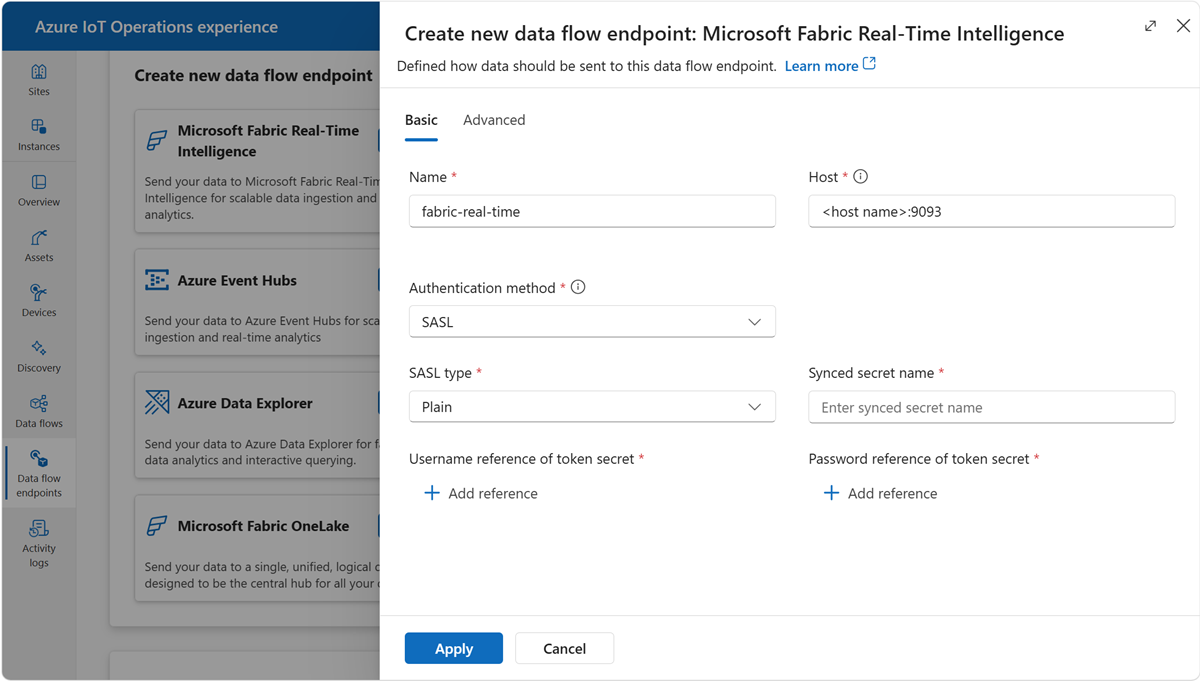
Setting Description Name The name of the data flow endpoint. Host The host name of the eventstream custom endpoint in the format <bootstrap-server>.servicebus.windows.net:9093. Use the bootstrap server address noted previously.Authentication method The method used for authentication. Choose System-assigned managed identity, User-assigned managed identity, or SASL. Use the authentication method that matches how you want Azure IoT Operations to connect to the custom endpoint of the Fabric eventstream:
- System-assigned managed identity: Use the Azure IoT Operations Azure Arc extension identity to authenticate with the eventstream. Before you create the endpoint, add the extension identity to the Fabric workspace with permissions of Contributor or higher. To learn more, see System-assigned managed identity.
- User-assigned managed identity: Use a user-assigned managed identity configured for Azure IoT Operations cloud connections. Before you create the endpoint, add the user-assigned managed identity to the Fabric workspace with permissions of Contributor or higher. To learn more, see User-assigned managed identity.
- SASL: Use the custom endpoint connection string of the Fabric eventstream. This method requires Simple Authentication and Security Layer (SASL) settings and a synced Kubernetes secret with the username and password values. To learn more, see SASL.
Select Apply to provision the endpoint.
Available authentication methods
The following authentication methods are available for Real-Time Intelligence data flow endpoints.
System-assigned managed identity
Before you configure the data flow endpoint, give the Azure IoT Operations managed identity access to the Fabric workspace that contains your eventstream. Custom endpoints for the Fabric eventstream authorize managed identities through Fabric workspace access, not through the Azure portal identity and access management (IAM) on an Azure resource.
- In the Azure portal, go to your Azure IoT Operations instance and select Overview.
- Copy the name of the extension listed after Azure IoT Operations Arc extension. For example, copy azure-iot-operations-xxxx7.
- In Microsoft Fabric, go to your workspace and select Manage access > Add people or groups.
- Search for the Azure IoT Operations Azure Arc extension identity that you copied. For example, azure-iot-operations-xxxx7.
- Assign workspace permission of Contributor or higher to the identity.
For more information, see Assign Fabric workspace permissions.
Configure the data flow endpoint with system-assigned managed identity settings.
On the operations experience tab for the data flow endpoint settings page, select the Basic tab, and then select Authentication method > System-assigned managed identity.
User-assigned managed identity
To use a user-assigned managed identity for authentication, you must first deploy Azure IoT Operations with secure settings enabled. Then you need to set up a user-assigned managed identity for cloud connections. To learn more, see Enable secure settings in Azure IoT Operations deployment.
To grant the user-assigned managed identity access to your Microsoft Fabric workspace:
- In Microsoft Fabric, go to your workspace and select Manage access > Add people or groups.
- Search for your user-assigned managed identity.
- Assign workspace permission of Contributor or higher to the identity.
Custom endpoints for the Fabric eventstream authorize managed identities through Fabric workspace access, not through the Azure portal IAM on an Azure resource. For more information, see Assign Fabric workspace permissions.
Configure the data flow endpoint with user-assigned managed identity settings.
On the operations experience tab for the data flow endpoint settings page, select the Basic tab, and then select Authentication method > User-assigned managed identity.
SASL
To use SASL for authentication, specify the SASL authentication method and configure the SASL type and a secret reference with the name of the secret that contains the SASL credentials.
We recommend that you use Azure Key Vault to sync the connection string to the Kubernetes cluster so that the data flow can reference it. Secure settings must be enabled to configure this endpoint by using the operations experience web UI.
On the operations experience tab for the data flow endpoint settings page, select the Basic tab, and then select Authentication method > SASL.
Enter the following settings for the endpoint:
Setting Description SASL type The type of SASL authentication to use. For Fabric custom endpoints, select Plain.Synced secret name Enter a name for the synced secret. A Kubernetes secret with this name is created on the cluster. Username reference of token secret The reference to the username or token secret used for SASL authentication. Password reference of token secret The reference to the password or token secret used for SASL authentication. Select Add reference to create a new Key Vault reference or choose an existing Key Vault reference for the username and password references:
Username reference of token secret: A Key Vault secret whose value is the literal string
$ConnectionString(including the leading$).
Password reference of token secret: The secret value must be the connection string with the primary key from the custom endpoint of the eventstream.

Supported SASL types:
PlainScramSha256ScramSha512
The secret must be in the same namespace as the Kafka data flow endpoint. The secret must have both the username and password as key/value pairs.
Advanced settings
The advanced settings for this endpoint are identical to the advanced settings for Event Hubs endpoints.