Note
Access to this page requires authorization. You can try signing in or changing directories.
Access to this page requires authorization. You can try changing directories.
In this quickstart, you learn how to use the Azure portal to create a storage task and assign it to an Azure Storage account. Then, you'll review the results of the run. The storage task applies a time-based immutability policy any Microsoft Word documents that exist in the storage account.
Prerequisites
An Azure subscription. See create an account for free.
An Azure storage account. See create a storage account. As you create the account, make sure to enable version-level immutability support and that you don't enable the hierarchical namespace feature.
During the public, you can target only storage accounts that are in the same region as the storage tasks.
The Storage Blob Data Owner role is assigned to your user identity in the context of the storage account or resource group.
A custom role assigned to your user identity in the context of the resource group that contains the RBAC actions necessary to assign a task to a storage account. See Permissions required to assign a task.
A blob container with one or more Microsoft Word documents stored in that container.
Create a task
In the Azure portal, search for Storage Actions.
Under Services, select Storage tasks - Azure Storage Actions.

On the Azure Storage Actions | Storage Tasks page, select Create.
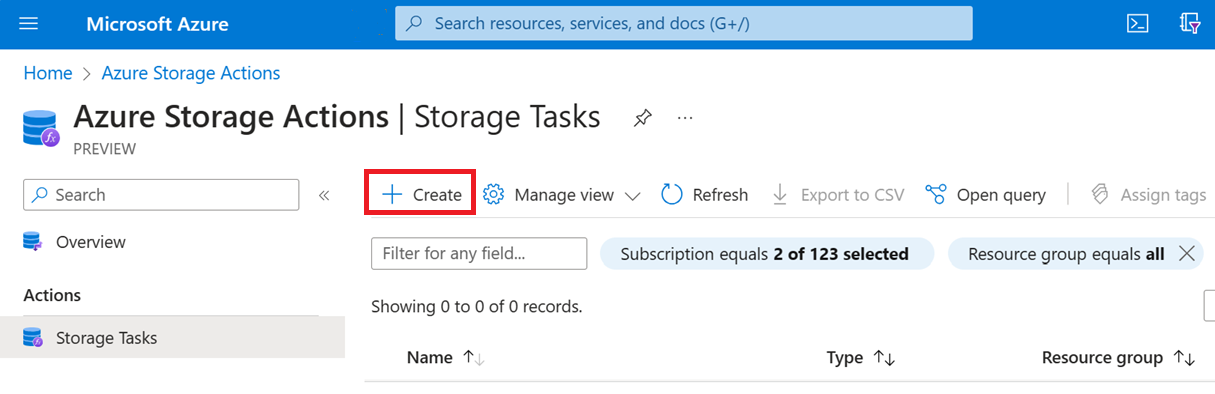
On Basics, under Project details, select the subscription and resource group that contain your storage account.

Under Instance details, enter mystoragetask for the Storage task name, and select any region that the service supports.

Select Next to open the Conditions page.
Add clauses to a condition
Specify the conditions of a storage task by making selections in the If section of the Visual Builder tab. Every storage task has at least one condition with one clause in that condition.
In the Select a property list of the If section, select Blob name.
For the Operator of that condition, select Ends with, and in the Enter a string box, enter
.docx.
This condition allows operations only on Word documents.
Add operations
Specify the operations that a storage task performs by making selections in the Then section of the Visual Builder tab. Every storage task has at least one operation to perform when a blob or container meets the specified condition.
In the Select an operation drop-down list of the Then section, select Set blob immutability policy.

This operation applies a time-based immutability policy to Microsoft Word documents.
Select Add new operation, and then in the Select a operation drop-down list, select Set blob tags.
In the Enter a tag name box, enter ImmutabilityUpdatedBy, and in the Enter a tag value box, enter StorageTaskQuickstart.

This operation adds a blob index tag to each Word document in that container.
Select Next to open the Assignments page.
Add an assignment
A storage task assignment specifies a storage account on which the task runs. It includes execution configuration settings that help you target specific blobs, and specify when and how often the task runs. Add task assignments for each storage account where you want the task to run.
Select Add assignment.
The Add assignment pane appears.
In the Select scope section, select your subscription and storage account. Name the assignment mystoragetaskassignment.

In the Role assignment section, in the Role drop-down list, select the Storage Blob Data Owner to assign that role to the system-assigned managed identity of the storage task.

In the Filter objects section, select the Blob prefix option. In the Include blob prefixes box, enter the prefix of the container you're using to complete this quickstart followed by the
/character. For example, if your test container is namedmycontainer, entermycontainer/.
Filters help you narrow the scope of execution. If you want the task to evaluate all of the containers and blobs in an account, select the Do not filter option instead.
In the Trigger details section, select Single run (only once) and then select the container where you'd like to store the execution reports.

Select Add.
In the Tags tab, select Next.
In the Review + Create tab, select Review + create.
When the task is deployed, the Your deployment is complete page appears.
Select Go to resource to open the Overview page of the storage task.
Enable the task assignment
Storage task assignments are disabled by default. Enable assignments from the Assignments page.
Select Assignments, select the mystoragetaskassignment assignment, and then select Enable.
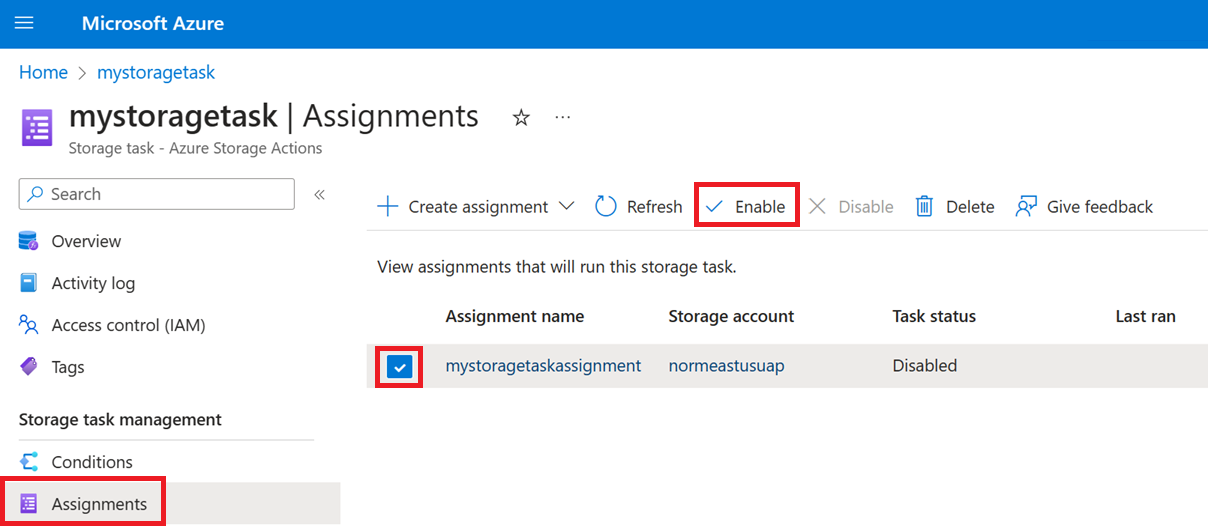
The task assignment is queued to run.
Periodically select Refresh to view an updated status.
Until the task runs and then completes, the string In progress appears beneath the Last run status column. When the task completes, the string Completed appears in that column.

View results of the task run
After the task finishes running, you can view the results.
With the Assignments page still open, select View task runs.
This step opens the Execution tasks pane that displays the finished run and its execution report.
Select the View report link to download a report.

The execution report uses the CSV format and captures each object processed, including the blob container, blob name, the operation performed, and the operation result. You can also view these reports in the container that you specified when you configured the assignment.