Note
Access to this page requires authorization. You can try signing in or changing directories.
Access to this page requires authorization. You can try changing directories.
APPLIES TO: Business Central online
The Business Central Model Context Protocol (MCP) server lets developers and business users interact with Business Central data directly from Visual Studio Code by using natural language through GitHub Copilot. With this integration, you can perform common business operations—such as viewing customers, creating items, and processing sales orders—through conversational AI assistance. This article explains how to configure the Business Central MCP server in Visual Studio Code and how to use it with GitHub Copilot to manage Business Central data.
Learn more about the MCP server in Model Context Protocol (MCP) in Business Central.
Prerequisites
Visual Studio Code installed with the GitHub Copilot extension
Access to a Business Central online environment configured with the MCP server. Learn more in Configure Business Central MCP Server.
The MCP server connection string details, including the following values (required for setup only):
HTTP header Description Example TenantIdThe Microsoft Entra tenant to use. Required unless the MCP host supports omitting it. aaaabbbb-0000-cccc-1111-dddd2222eeeeEnvironmentNameThe Business Central environment to use. Required unless the MCP host supports omitting it. ProductionCompanyThe company to use. Required unless the MCP host supports omitting it. CRONUS USA, Inc.(ASCII)=?base64?Q3JvbnVzIMOFcmh1cyBBL1M=?=(Base64-encoding ofCRONUS Århus A/S)ConfigurationNameOptional. The MCP server configuration in the environment to use. If omitted or empty, the server uses the current default configuration. SalesTeamConfig=?base64?w4VyaHVzU2FsZXNUZWFtQ29uZmln?=(Base64-encoding ofÅrhusSalesTeamConfig)Note
MCP hosts that support headerless Business Central connections can omit
TenantId,EnvironmentName,Company, andConfigurationName. For example, Visual Studio Code with GitHub Copilot supports omitting all four headers.If the
CompanyorConfigurationNamevalues contain non-ASCII characters (for example,ø,æ, orå), encode the values by using Base64 (UTF-8).
The encoded value must use the format=?base64?<encodedvalue>?=. Learn more in Base64 decoding in the MCP HTTP standard.In Copilot Studio, you don't need to manually encode these values because the platform handles the encoding.
Visual Studio Code supports omitting all four headers. When TenantId is omitted, the server determines the tenant from your signed-in identity. Include EnvironmentName or Company to pin its value for the connection, or omit it to let the agent select an accessible value at runtime. When Company is omitted, API tools use dynamic tool mode so the agent can discover the needed action at runtime. When EnvironmentName or Company is omitted, the agent can use
list_environmentsorlist_companies, as applicable. Omit ConfigurationName to use the current default configuration. You can get a connection string that includes these headers from the Business Central web client. Learn more in Get the MCP server configuration connection.
Set up the MCP server in Visual Studio Code
Open Visual Studio Code.
Configure the MCP server at either the user level or the workspace level, depending on whether you want the configuration to apply globally or only to a specific workspace:
Follow these steps if you want the MCP server configuration available in every file, folder, or workspace:
- Select Ctrl+Shift+P to open Command Palette.
- In search, enter and select MCP: Open User Configuration.
Add the Business Central MCP server within the
"servers": { }element of themcp.jsonfile as illustrated in the following JSON code.{ "servers": { "businesscentral": { "url": "https://mcp.businesscentral.dynamics.com", "type": "http" } } }This headerless configuration lets the agent select values available to your signed-in identity at runtime. To pin a tenant, environment, company, or configuration, add a
"headers"object and the applicable values from the connection string details in Prerequisites. When you omit"ConfigurationName", the server uses the current default configuration. The built-in default configuration gives read-only access to eligible API pages and API queries. If an admin designates another active configuration as the default, the available tools and permissions depend on that configuration.Tip
If you copied the MCP server configuration connection string directly from the Business Central web client, paste the copy within
"servers": { }. Learn more in Get the MCP server configuration connection.In the toolbar above the
"businesscentral"server you added, select Start to start the server.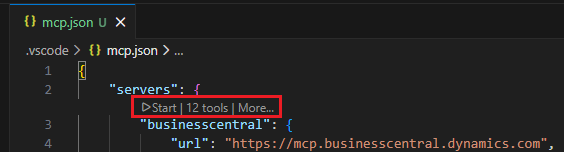
When started, the text changes to
Running.Go to the next section to verify the connection.
Use the Business Central MCP server with an agent
Once the MCP server is configured, you can interact with Business Central through GitHub Copilot Chat.
In Visual Studio Code, open the GitHub Copilot Chat in the Agent mode (Ctrl+Shift+I).
In the Chat box, type a question or instructions like: "Can you list all items" or "list my customers".

The agent starts working on a response, like fetching customer data.
If you don't get a response, select Configure tools in the Chat box to verify the Business Central MCP server is enabled. If it's enabled, there's an entry for businesscentral.
Note
The agent can only access data and perform operations permitted by the MCP server configuration. Your available operations depend on the API permissions defined in your Business Central environment. For example, you can only create a customer if you have Create permission on the Customer API. If an operation fails due to insufficient permissions, contact your Business Central administrator to enable the required API access. Learn more about configurations in Configure Business Central MCP Server
Related information
Business Central MCP Server overview
Configure Business Central MCP Server
Model Context Protocol Documentation
GitHub Copilot in Visual Studio Code