Note
Access to this page requires authorization. You can try signing in or changing directories.
Access to this page requires authorization. You can try changing directories.
Copilot in Customer Service provides real-time AI assistance that helps customer service representatives (service representatives or representatives) automate tasks, resolve cases faster, and deliver better customer experiences. When you turn on Copilot features, representatives can respond to questions, compose emails, draft chat responses, and summarize cases and conversations in the Copilot Service workspace app.
This article helps administrators:
- Identify which setting controls the Copilot scenario they want to turn on.
- Confirm prerequisites, licensing, and region requirements before setup.
- Enable, configure, and validate Copilot features for representatives.
Note
Summarize conversations is available in Copilot Service workspace only. To use Copilot features in Customer Service Hub and custom apps, you must also complete the steps in Enable Copilot features in Power Platform admin center.
How Copilot features are delivered
Copilot features in Dynamics 365 Customer Service are powered by Microsoft 365 Copilot and exposed in Customer Service apps such as Copilot Service workspace. Copilot features use customer service data, such as cases, customer records, and interactions, to help representatives retrieve information, generate responses, and complete actions without leaving their workflow.
Some Copilot capabilities are delivered through Copilot agents, such as Service Agent. These agents extend Copilot with customer service–specific functionality that helps representatives summarize cases, retrieve knowledge, and perform actions.
You manage Copilot features in two admin centers:
- Power Platform admin center: Turn on AI-powered Copilot features for an environment, and manage data movement across regions and data sharing.
- Copilot Service admin center: Opt in, choose the Copilot experiences that representatives use, configure Copilot agents, and manage translation and transcript settings.
Choose the right setting for your scenario
Use the following table to find the setting that controls what you want to do. Then go to the linked section for detailed steps.
| I want to... | Admin center | Path or setting | Section in this article |
|---|---|---|---|
| Turn on Copilot features for an environment | Power Platform admin center | Copilot > Settings > Copilot (under Dynamics 365 Customer Service) > select the environment > Edit setting > Enable AI-powered Copilot features | Enable Copilot features in Power Platform admin center |
| Use Copilot features in Customer Service Hub or custom apps | Power Platform admin center | Enable AI-powered Copilot features for the environment | Enable Copilot features in Power Platform admin center |
| Use Copilot in a region where it isn't available in region by default | Power Platform admin center | Allow data movement across regions | Region availability and data movement |
| Fix throttling or unavailability caused by capacity constraints | Power Platform admin center | Allow data movement across regions | Understand cross-region data movement |
| Let Microsoft capture and review Copilot data to improve features | Power Platform admin center | Data sharing for Dynamics 365 Copilot features | Data sharing for Copilot features |
| Accept the terms and continue setup | Copilot Service admin center | Support experience > Productivity > Copilot settings, or Operations > Insights > Summaries > Opt in | Opt in to Copilot features |
| Stop using Copilot features | Copilot Service admin center | Support experience > Productivity > Copilot settings, or Operations > Insights > Summaries | Opt out of Copilot features |
| Choose Copilot immersive or Copilot side pane for representatives | Copilot Service admin center | Support experience > Productivity > Copilot settings > Manage | Configure Copilot experiences for representatives |
| Control which representatives get which Copilot features in Copilot Service workspace | Copilot Service admin center | Experience profiles | Make Copilot available to representatives |
| Configure Copilot behavior, email settings, and prompts for representatives | Copilot Service admin center | Agents within Copilot > Customer Support > Settings | Configure Customer Support agent settings |
| Manage admin prompts, user access, and tools and knowledge for administrators | Copilot Service admin center | Agents within Copilot > Admin Management > Settings | Configure Admin Management agent settings |
| Let representatives translate responses | Copilot Service admin center | Copilot settings > Translation using Copilot | Let representatives translate responses |
| Record representative interactions with Copilot for usage analysis | Copilot Service admin center | Copilot settings > Support experience data | Record representative interactions with Copilot |
| Give users with custom security roles access to Copilot | Power Platform admin center | Security roles and privileges | Assign roles and privileges |
Prerequisites
Before you set up Copilot features, ensure that you:
- Have the System Administrator role.
- Meet the licensing requirements for using the feature with production environments. Learn more in the Dynamics 365 Licensing Guide.
- Use an environment geography that supports Copilot in region, or you allowed data movement across regions. Learn more in Region availability and data movement.
- Verify that the languages your representatives use are supported. Learn more in Language support for AI-based analytics and insights in Customer Service.
- Assign representatives the Customer Service Representative role, or a custom role that includes the required privileges. Learn more in Assign roles and privileges.
Region availability and data movement
The option to enable Copilot AI features is available in region by default to customers with environments that have the following geographies for data processing and storage:
- United States
- Australia
- India
- United Kingdom
- Government cloud regions (GCC, GCC High)
In region means within the geographical region of your Power Platform or Dynamics 365 environment.
For Europe, data movement for Copilot features is turned on by default.
For all other regions, you must allow data movement across regions in Power Platform admin center before you can opt in to use Copilot.
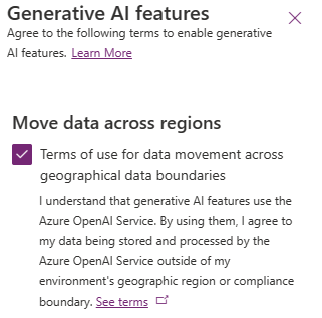
The respond to questions, compose an email, and summarize cases and conversations features are generally available in the North America region only. These features are in preview in the rest of the supported regions. Learn more in Region availability.
Understand cross-region data movement
Copilot feature performance depends on the regional availability of Azure OpenAI services. The following table describes when you must allow data movement across regions in Power Platform admin center before you can opt in to use Copilot.
| Scenario | Data movement required? |
|---|---|
| Azure OpenAI capacity is available in the same region as your tenant. | No |
| Azure OpenAI capacity isn't available in your tenant region. | Yes |
| Azure OpenAI capacity is available in your tenant region, but has fallback to external regions. | Optional. If you don't allow data movement, you might have performance issues, such as throttling or unavailability due to capacity constraints. |
Note
Data movement across regions is turned on by default in Power Platform admin center.
Supported languages
Learn about supported languages for Copilot in Language support for AI-based analytics and insights in Customer Service.
Data sharing for Copilot features
You can turn on data sharing for Dynamics 365 Copilot features in Power Platform admin center. Data sharing allows Microsoft to capture and manually review customer data, including, but not limited to, users' natural language inputs, outputs, and related telemetry to build, improve, and validate Microsoft's features, services, machine learning models, and related systems for Dynamics 365 and Power Platform Copilot AI features.
Microsoft doesn't use customer data to train Azure OpenAI Service foundation models. Learn more in Tenant settings and FAQ for optional data sharing for Copilot AI features in Dynamics 365 and Power Platform.
Enable Copilot features in Power Platform admin center
Turn on Copilot features for your environment. This step is required for representatives to use Copilot features in Customer Service Hub and custom apps.
- Sign in to Power Platform admin center.
- In the site map, select Copilot.
- Under Dynamics 365 Customer Service, select Settings > Copilot.
- Search for and select your environment, and then select Edit setting.
- Select the Enable AI-powered Copilot features checkbox, and then save your changes.
Opt in to Copilot features
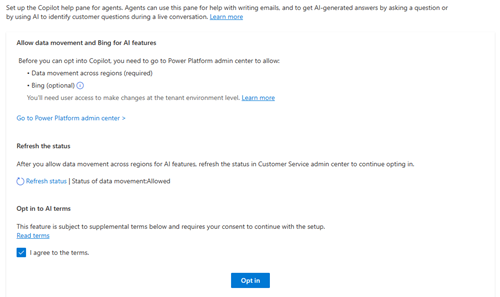
In Copilot Service admin center, the Copilot settings and Summaries pages display the following information:
- A message to allow data movement across regions, if your region doesn't have Copilot features available by default.
- A link to Power Platform admin center, where you can allow data movement across regions.
- The data movement status.
- A link to review the terms and conditions.
To opt in:
In Copilot Service admin center, go to one of the following pages:
- Support experience > Productivity > Copilot settings
- Operations > Insights > Summaries
Review the data movement status. If data movement is required for your region and isn't allowed, use the link to allow data movement across regions in Power Platform admin center.
Review the terms and conditions.
Select Opt in.

Opt out of Copilot features
- In Copilot Service admin center, go to one of the following pages:
- Support experience > Productivity > Copilot settings
- Operations > Insights > Summaries
- Opt out of Copilot features.
Important
When you opt out, the application erases the training data. To use the features again, you must consent to the terms of use and opt in.
Make Copilot available to representatives
How representatives get access to Copilot depends on the app they use.
| App | How access is granted |
|---|---|
| Copilot Service workspace | Turn on Copilot features in experience profiles. By default, representatives you add to the default experience profiles can use Copilot features. |
| Customer Service Hub | When you turn on the feature, it's available to all representatives. |
To limit the Copilot features that specific representatives can use in Copilot Service workspace:
- Create a custom experience profile and turn on only the required Copilot features.
- Assign the custom experience profile to the representatives.
Learn more in Add users to experience profiles.
Configure Copilot experiences for representatives
- In Copilot Service admin center, under Support experience, select Productivity.
- For Copilot settings, select Manage.
- Select the checkboxes for the Copilot experiences you want representatives to use:
- Copilot immersive
- Copilot side pane
- Save your changes.
Configure Customer Support agent settings
To manage how Copilot behaves for your representatives, configure the Customer Support agent.
- In Copilot Service admin center, in the Agents within Copilot section, select Settings next to Customer Support. The Customer Support page appears.
- Configure the required Copilot features for representatives on the following tabs:
- Overview
- Immersive settings
- Email settings
- Prompts
- Extend agent
Learn more about the Customer Support agent and the settings on each tab in Enable features in Copilot.
Configure Admin Management agent settings
The Admin Management (preview) agent is an optional Copilot agent that gives administrators a centralized way to manage administrative prompts, control user access, and connect tools and knowledge through Copilot Studio.
- In Copilot Service admin center, in the Agents within Copilot section, select Settings next to Admin Management. The Admin Management page appears.
- Configure the required Copilot features for administrators on the following tabs:
- Overview
- Prompts
- User access
- To manage tools and knowledge for this agent, use the links to Copilot Studio on the Overview tab.
Learn more in Enable features in Copilot.
Let representatives translate responses
- On the Copilot settings page, go to Translation using Copilot.
- Select Let representatives translate responses using Copilot.
Representatives can then select from the languages configured in Dynamics 365.
Record representative interactions with Copilot
- On the Copilot settings page, go to the Support experience data section.
- Select Record transcripts of representative interactions with Copilot.
Use the recorded data to understand usage patterns and improve Copilot performance. You can also download the data to analyze knowledge sources and build usage reports.
Assign roles and privileges
By default, only users with the Customer Service Representative role can use Copilot features. If your users have custom security roles, ensure those roles include the following privileges.
| Table | Name | Create | Read | Write | Append | Append To |
|---|---|---|---|---|---|---|
| Copilot event | msdyn_copilotevent | Yes | Yes | Yes | Not applicable | Not applicable |
| Copilot interaction | msdyn_copilotinteraction | Yes | Yes | Not applicable | Yes | Not applicable |
| Copilot interaction data | msdyn_copilotinteractiondata | Yes | Yes | Yes | Not applicable | Yes |
| Agent Preference For Copilot | msdyn_copilotagentpreference | Yes | Yes | Yes | Not applicable | Not applicable |
| AI Model | msdyn_aimodel | Not applicable | Yes | Not applicable | Not applicable | Not applicable |
| AI Template | msdyn_aitemplate | Not applicable | Yes | Not applicable | Not applicable | Not applicable |
| ConversationInsight | msdyn_conversationinsight | Not applicable | Yes | Not applicable | Not applicable | Not applicable |
| Copilot Transcript Data | msdyn_copilottranscriptdata | Yes | Yes | Yes | Yes | Not applicable |
| App profile | msdyn_appconfiguration | Not applicable | Yes | Not applicable | Not applicable | Not applicable |
| Pane tool configuration | msdyn_panetoolconfiguration | Not applicable | Yes | Not applicable | Not applicable | Not applicable |
| Productivity pane configuration | msdyn_paneconfiguration | Not applicable | Yes | Not applicable | Not applicable | Not applicable |
| Pane tab configuration | msdyn_panetabconfiguration | Not applicable | Yes | Not applicable | Not applicable | Not applicable |
| Organization Setting | organizationsetting | Not applicable | Yes | Not applicable | Not applicable | Not applicable |
Note
Ensure that your custom security roles include Miscellaneous privileges > prvIntelligenceUsage so that users can access Copilot. Learn more in Security roles and privileges.
Access levels for the Copilot event table
Set the following access levels for the Copilot event (msdyn_copilotevent) privileges, based on the type of custom role.
| Custom role type | Privilege | Access level |
|---|---|---|
| Representative | prvReadmsdyn_copilotevent |
Basic |
| Representative | prvWritemsdyn_copilotevent |
Basic |
| Representative | prvCreatemsdyn_copilotevent |
Global |
| Customer service representative manager | prvReadmsdyn_copilotevent |
Global |
| Customer service representative manager | prvCreatemsdyn_copilotevent |
Global |
| Customer service representative manager | prvWritemsdyn_copilotevent |
Global |
Validate your setup
After you complete setup, verify that Copilot works as expected.
- In Power Platform admin center, confirm that Enable AI-powered Copilot features is selected for your environment.
- In Copilot Service admin center, on the Copilot settings page, confirm that you're opted in and that the data movement status meets your region's requirements.
- Confirm that the Copilot experiences you want (Copilot immersive, Copilot side pane, or both) are selected.
- Confirm that the representatives you're testing with are assigned to an experience profile that has Copilot features turned on.
- Sign in to Copilot Service workspace as a test representative, open a case or conversation, and use a Copilot feature, such as asking a question or summarizing the case.
- If representatives use Customer Service Hub or a custom app, sign in to that app as a test representative and confirm that Copilot features are available.
- If you use custom security roles, sign in as a user with that role and confirm that Copilot features work.
Next steps
Enable Copilot case and conversation summaries
Enable features in Copilot pane
Configure Copilot features for custom case forms and custom apps
Related information
Draft a chat response
Responsible AI FAQ for Copilot in Customer Service
FAQ for Copilot in Customer Service