Note
Access to this page requires authorization. You can try signing in or changing directories.
Access to this page requires authorization. You can try changing directories.
A command isn't working. How do I use the command checker tool for timeline?
Learn how to enable and use the command checker in Troubleshooting ribbon issues in Power Apps.
If you try to use the command action for activities on a timeline but the command action is hidden by custom rules, you might get the following error message:
"We can't compete the action you've selected."
You can check whether the action is hidden by navigating to Related > Activities.
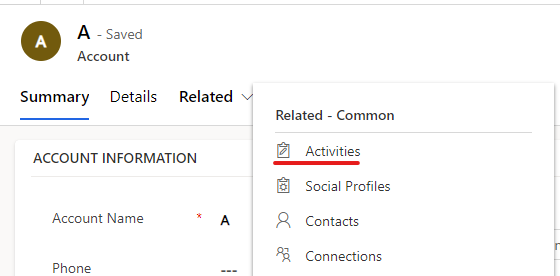
On the Activities tab, select the same activity that you want to perform the action on, and then check if you can perform the same command action from there.
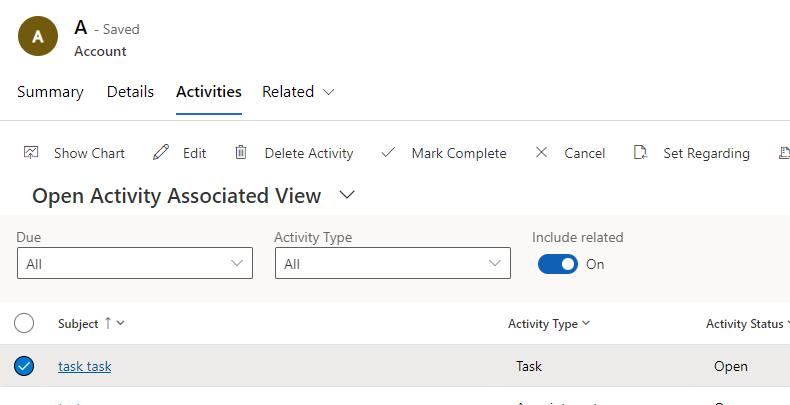
If the command action works there but not from the timeline, contact Microsoft Support.
If you can't find the command action from the related activity grid, you can further troubleshoot the issue with command checker to find out which custom rule hides the command.
Play the model-driven app that has the timeline.
From a table record that displays the timeline, select Related > Activities to go to the Open Activity Associated View.
Enable the command checker tool by appending the
&ribbondebug=trueparameter to the app URL.
Select the Command checker command that appears on the app command bar. It might be listed on the More overflow flyout menu.

On the command checker page that displays, select Group Id: Mscrm.SubGrid.activitypointer.MainTab.Actions.
Select a hidden command such as Mark Complete (hidden), and then select the Command properties tab to find out what custom rules are used to hide the command action.

Note
The timeline always displays command actions without honoring the custom rules to hide or disable the command button for performance reasons.
Why aren't posts appearing in timeline and why can't I create a new post?
Posts in the timeline are only available for Dynamics 365 app-enabled Dataverse environments. New environments have posts turned off in the timeline by default. To enable posts, follow these steps:
In the Dynamics 365 Customer Service admin center, go to Miscellaneous > New and upcoming features, and then select Timeline User Posts.

Check if the current table has the post configuration property activated. Go to Settings > Activity Feeds configurations > Post Configurations. In the following example, it's active for cases.

If the table isn't listed, look for it in the Inactive Post Configurations view. If the table you want isn't listed, select Refresh on the command bar. Select the table, and then select Activate.
Ensure that posts are enabled from timeline configuration on the current form. Learn more in Record types to show.
Ensure that the Enable user posts setting is enabled on the current form. If the checkbox is selected, clear it and select it again. Save and publish the changes from the form designer.

Do timeline records automatically refresh?
No. The timeline doesn’t automatically refresh records. You must manually refresh the timeline to see updates made to a record. For example, if you update a record when you reply to an email, you must manually refresh the timeline to see the updated record.
Why do the "Modified On" columns of my records change when no changes are made to them?
The cascading behavior with the parent record can cause this scenario. For example, it can occur when a case is assigned to another user. The same cascading behavior can update the Modified By value for timeline records when the parent record is reassigned. Learn how to configure this behavior in Table Relationships.
Alternatively, you can configure timeline to sort notes by their Created on date. Learn more in Notes on timeline.
What privileges do I need to use timeline?
- To open attachments, you need read privilege for the Activity file attachment table.
- For personal settings and bookmarks, you need read, write, and create privileges on the Custom Control Extended Setting table.
Power Platform admins can assign users these privileges. Learn more in Security roles and privileges.
How do I configure timeline for mobile offline?
Learn about general guidance on enabling mobile offline for your app in Set up mobile offline.
Note
- The offline profile must have the Note and User tables in order for the timeline to work.
- Only notes are available when offline.
How can I resolve issues with email tracking or auto capture?
Go to Auto Capture in Dynamics 365 sales for general information or go to the auto capture FAQ.