Use Copilot with Microsoft Fabric data pipelines
Copilot helps you create a data pipeline that copies data from a public or internal data source into a lakehouse for analysis. This unit focuses on the concepts, flow, and rationale behind each step.
Prepare the source and destination
Before any pipeline can run, a few foundational elements must be in place: access to a Fabric tenant with a workspace, and a Lakehouse as the destination. These are the building blocks that ensure there's both a source and a target for the data integration process.
Create a connection
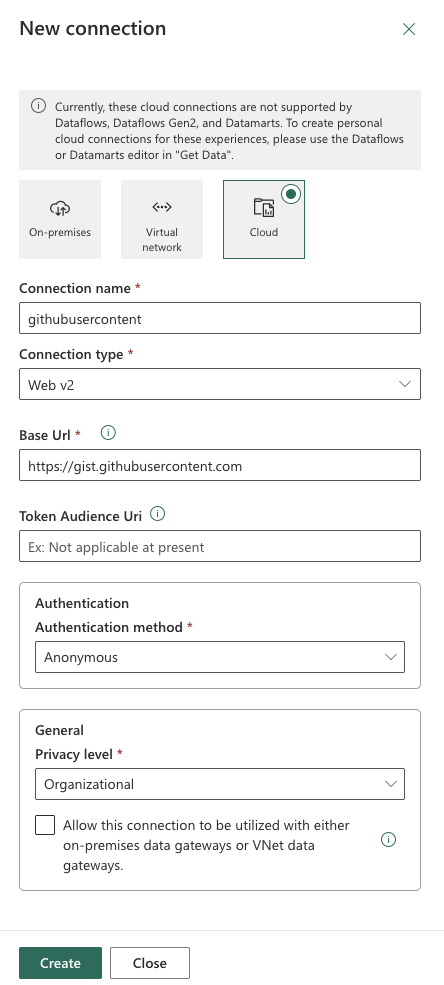
Connections are essential for linking Fabric with external data sources. Conceptually, a connection defines where the data is coming from and how it's accessed. Public datasets can often be ingested with anonymous authentication, while enterprise sources may require stricter credentials.
Create or obtain access to the connections required by your pipeline. Select the gear icon in the Fabric portal and then Manage connections and gateways to manage connection settings and credentials. Copilot doesn't replace this authentication and access configuration.
Ingest data with Copilot
Open or create a pipeline, then select Copilot on the Home tab. Select Ingest data to generate a Copy activity. Type / in the prompt to select existing source and destination connections. You still have to provide missing context such as:
- Source connection
- Destination connection
- Target table name
Source connection of CopyDataActivity is [source]; destination connection is [lakehouse]; table name is [tablename].
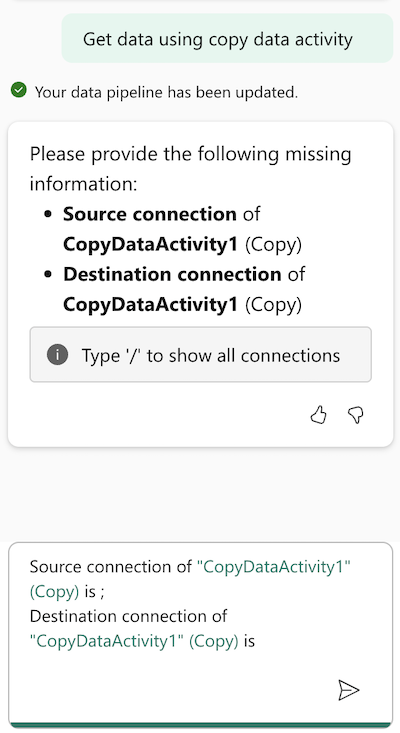
Copilot scaffolds the activity, but you must validate and complete it, including the file path, file format, and column delimiter. Review defaults and fill in context-sensitive details before running it.
Orchestrate activities safely
Pipelines orchestrate activities; an activity that deletes files doesn't transform their contents. If a workflow requires deleting disposable staging files, you can request a Delete activity:
Add a Delete activity before the Copy activity for a disposable staging folder. Don't run the pipeline.
Review the proposed activity and its dependency on the Copy activity. Configure and verify the connection, folder path, and deletion scope yourself. Test only with disposable data: a Delete activity removes files and isn't a substitute for a data transformation.
Conceptually, this stage shows how Copilot facilitates pipeline orchestration while leaving you responsible for precision and governance.
Summarize the pipeline
Copilot can also describe the pipeline in plain language. This helps you:
- Verify that the pipeline aligns with your intent.
- Reinforce understanding of the workflow’s components.
- Reflect on how ingestion, transformation, and orchestration fit together.
As an example, consider the following prompt:
Summarize this pipeline, turning the technical configuration into a conceptual narrative.
Troubleshoot with the error message assistant
When a pipeline run fails, open Monitor, filter for failed pipelines, and select the Copilot icon beside the failed run. You can also access troubleshooting from the pipeline authoring page. Copilot summarizes the error and suggests troubleshooting steps. You still need to inspect logs and validate the proposed fix. If you supply an error in a prompt, remove credentials and other sensitive details:
Explain this pipeline timeout error and suggest troubleshooting steps: [sanitized error message].
Treat the explanation as a possible cause, not a confirmed diagnosis.
Build pipeline expressions
Pipelines often require dynamic expressions for constructing file paths, formatting dates, or conditional logic. In an activity setting that supports expressions, select Add dynamic content to open the expression builder. Use its Copilot pane to generate an expression, review it, then select Accept to apply it.
Create an expression that builds a dynamic output file path using today's date in yyyy-MM-dd format.
Beyond generation, you can also ask Copilot to explain what an existing expression does — helping you learn the expression language incrementally without leaving the pipeline editor.
Copilot helps generate pipeline activities and expressions, summarize workflows, and investigate errors. You remain responsible for connections, permissions, configuration, and validation. For the documented entry points, see Get started with Copilot in Data Factory.