概述
<asp> 元素的 <cache> 元素为 Internet Information Services (IIS) 7 指定以下 Active Server Pages (ASP) 缓存设置,这些设置可以控制 ASP 的性能行为:
- diskTemplateCacheDirectory 属性包含目录名,在内存缓存溢出后,ASP 会使用此目录将已编译的 ASP 模板存储到磁盘。 如果更改了默认目录,则需要确保已为运行 ASP 的进程的标识分配了对新目录的完全控制权限。
- enableTypelibCache 属性指定类型库是否缓存在服务器上。
- maxDiskTemplateCacheFiles 属性的值指定可以存储的已编译 ASP 模板的最大数量。 (存储已编译模板的目录由 diskTemplateCacheDirectory 属性配置。)
- scriptFileCacheSize 属性指定要缓存的预编译脚本文件数。 如果设置为 0,则不缓存任何脚本文件。 如果设置为 4294967295,则缓存所请求的所有脚本文件。 此属性用于优化性能,具体取决于可用内存量和脚本文件流量大小。
- scriptEngineCacheMax 属性指定 ASP 页在内存中缓存的最大脚本引擎数。
兼容性
| 版本 | 说明 |
|---|---|
| IIS 10.0 | <cache> 元素在 IIS 10.0 中未进行修改。 |
| IIS 8.5 | <cache> 元素在 IIS 8.5 中未进行修改。 |
| IIS 8.0 | <cache> 元素在 IIS 8.0 中未进行修改。 |
| IIS 7.5 | <cache> 元素在 IIS 7.5 中未进行修改。 |
| IIS 7.0 | IIS 7.0 中引入了 <asp> 元素的 <cache> 元素。 |
| IIS 6.0 | <cache> 元素替换以下 IIS 6.0 元数据库属性:
|
安装
若要在 Web 服务器上支持和配置 ASP 应用程序,必须安装 ASP 模块。 要安装 ASP 模块,请遵循以下步骤。
Windows Server 2012 或 Windows Server 2012 R2
- 在任务栏上,单击 “服务器管理器”。
- 在“服务器管理器”中,单击“管理”菜单,然后单击“添加角色和功能”。
- 在“添加角色和功能”向导中,单击“下一步”。 选择安装类型,然后单击“下一步”。 选择目标服务器,然后单击“下一步”。
- 在“服务器角色”页上,依次展开“Web 服务器 (IIS)”、“Web 服务器”和“应用程序开发”,然后选择“ASP”。
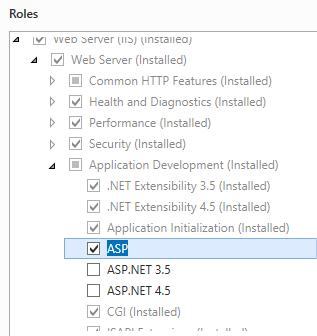
- 如果出现“是否添加 ASP 所需的功能?”对话框,请单击“添加功能”。 (仅当尚未在服务器上安装 ISAPI 扩展角色服务时,才会显示此页面。)
- 在“服务器角色”页上,单击“下一步”。
- 在“选择功能”页上,单击“下一步”。
- 在“确认安装选择”页上,单击“安装”。
- 在“结果” 页面中单击“关闭” 。
Windows 8 或 Windows 8.1
在“开始”屏幕上,将指针一直移动到左下角,右键单击“开始”按钮,然后单击“控制面板”。
在“控制面板”中,单击“程序与功能”,然后单击“打开或关闭 Windows 功能”。
依次展开“Internet 信息服务”、“万维网服务”和“应用程序开发功能”,然后选择“ASP.NET”。
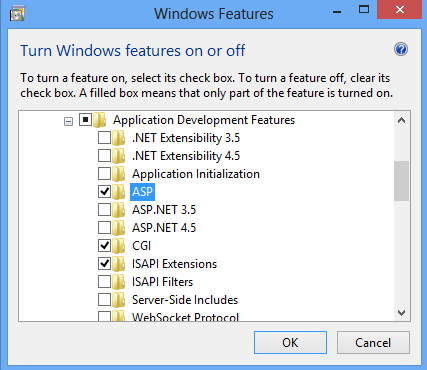
注意
如果尚未安装 ISAPI 扩展角色,则会选择该角色。
单击“确定”。
单击“关闭” 。
Windows Server 2008 或 Windows Server 2008 R2
- 在任务栏上,单击“开始”,指向“管理工具”,然后单击“服务器管理器”。
- 在“服务器管理器”层次结构窗格中,展开“角色”,然后单击“Web 服务器(IIS)”。
- 在“Web 服务器(IIS)”窗格中,滚动到“角色服务”部分,然后单击“添加角色服务”。
- 在“添加角色服务向导”的“选择角色服务”页,选择“ASP”。
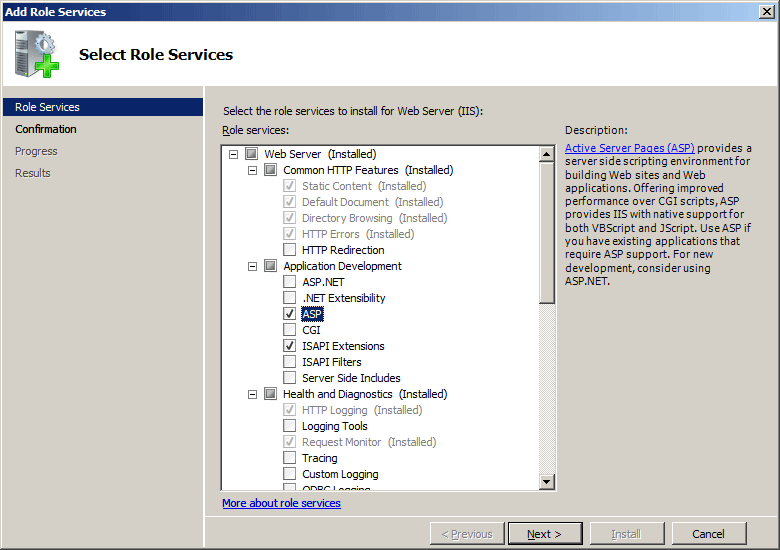
- 如果出现“添加 ASP 所需的角色服务”对话框,请单击“添加所需的角色服务”。 (仅当尚未在服务器上安装 ISAPI 扩展角色服务时,才会显示此页面。)
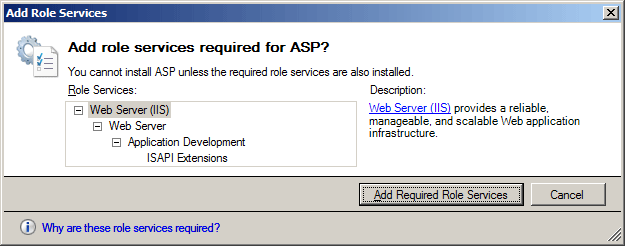
- 在“选择角色服务”页上,单击“下一步”。
- 在“确认安装选择”页中,单击“安装”。
- 在“结果” 页面中单击“关闭” 。
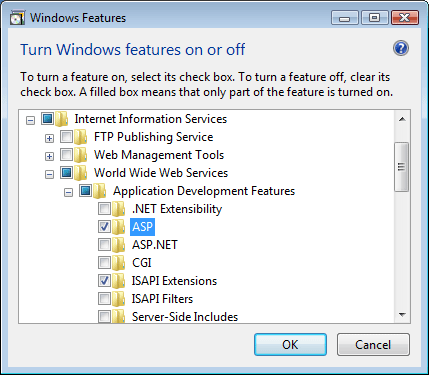
Windows Vista 或 Windows 7
- 在任务栏上,单击“开始”,然后单击“控制面板”。
- 在“控制面板”中,单击“程序与功能”,然后单击“打开或关闭 Windows 功能”。
- 依次展开“Internet Information Services”、“万维网服务”和“应用程序开发功能”。
- 选择“ASP”,然后单击“确定”。
操作方式
如何配置服务器的 ASP 缓存设置
打开 Internet Information Services (IIS) 管理器:
如果使用的是 Windows Server 2012 或 Windows Server 2012 R2:
- 在任务栏上,单击“服务器管理器”,单击“工具”,然后单击“Internet Information Services (IIS)管理器”。
如果使用的是 Windows 8 或 Windows 8.1:
- 按住 Windows 键,按字母 X,然后单击“控制面板”。
- 单击“管理工具”,然后双击“Internet 信息服务(IIS)管理器”。
如果使用的是 Windows Server 2008 或 Windows Server 2008 R2:
- 在任务栏上,单击“开始”,指向“管理工具”,然后单击“Internet Information Services (IIS)管理器”。
如果使用的是 Windows Vista 或 Windows 7:
- 在任务栏上,单击“开始”,然后单击“控制面板”。
- 双击“管理工具”,然后双击“Internet 信息服务(IIS)管理器”。
在“连接”窗格中,突出显示服务器的名称。
在服务器的“主页”窗格中,双击“ASP”。

在 ASP 窗格中,展开“缓存属性”部分,配置所需的设置,然后在“操作 ”窗格中单击“应用”。

配置
特性
| 属性 | 说明 |
|---|---|
diskTemplateCacheDirectory |
可选的字符串属性。 指定当内存中的缓存溢出时 ASP 存储已编译 ASP 模板的目录名。 默认值为 %SystemDrive%\inetpub\temp\ASP Compiled Templates。 |
enableTypelibCache |
可选布尔属性。 指定是否缓存类型库。 默认值为 true。 |
maxDiskTemplateCacheFiles |
可选 uint 属性。 指定可在磁盘上缓存的已编译 ASP 模板的最大数量。 此值是 0 到 2147483647 范围内的整数。 默认值为 2000。 |
scriptEngineCacheMax |
可选 uint 属性。 指定 ASP 页将在内存中缓存的脚本引擎的最大数量。 此值是 0 到 2147483647 范围内的整数。 默认值为 250。 |
scriptFileCacheSize |
可选 uint 属性。 指定要缓存的预编译脚本文件的数量。 如果设置为 0,则不缓存任何脚本文件。 如果设置为 4294967295,则缓存所请求的所有脚本文件。 此属性用于优化性能,具体取决于可用内存量和脚本文件流量大小。 默认值为 500。 |
子元素
无。
配置示例
以下配置示例作用如下:设置 ASP 模板缓存的目录,将可存储的已编译 ASP 模板最大数量设置为 400,将要缓存的预编译脚本文件数量设置为 1000,将 ASP 页将在内存中缓存的脚本引擎的最大数量设置为 500。
<configuration>
   <system.webServer>
      <asp>
         <cache maxDiskTemplateCacheFiles="4000"
            diskTemplateCacheDirectory="%SystemDrive%\inetpub\temp\ASP Compiled Templates"
            scriptFileCacheSize="1000"
            scriptEngineCacheMax="500"
         />
      </asp>
   </system.webServer>
</configuration>
代码示例
以下配置示例作用如下:设置 ASP 模板缓存的目录,将可存储的已编译 ASP 模板最大数量设置为 400,将要缓存的预编译脚本文件数量设置为 1000,将 ASP 页将在内存中缓存的脚本引擎的最大数量设置为 500。
AppCmd.exe
appcmd.exe set config -section:system.webServer/asp /cache.diskTemplateCacheDirectory:"%SystemDrive%\inetpub\temp\ASP Compiled Templates" /commit:apphost
appcmd.exe set config -section:system.webServer/asp /cache.maxDiskTemplateCacheFiles:"4000" /commit:apphost
appcmd.exe set config -section:system.webServer/asp /cache.scriptFileCacheSize:"1000" /commit:apphost
appcmd.exe set config -section:system.webServer/asp /cache.scriptEngineCacheMax:"500" /commit:apphost
注意
使用 AppCmd.exe 配置这些设置时,必须确保将 commit 参数设置为 apphost。 这会将配置设置提交到 ApplicationHost.config 文件中的相应位置部分。
C#
using System;
using System.Text;
using Microsoft.Web.Administration;

internal static class Sample
{
   private static void Main()
   {
      using (ServerManager serverManager = new ServerManager())
      {
         Configuration config = serverManager.GetApplicationHostConfiguration();
         ConfigurationSection aspSection = config.GetSection("system.webServer/asp");

         ConfigurationElement cacheElement = aspSection.GetChildElement("cache");
         cacheElement["diskTemplateCacheDirectory"] = @"%SystemDrive%\inetpub\temp\ASP Compiled Templates";
         cacheElement["maxDiskTemplateCacheFiles"] = 4000;
         cacheElement["scriptFileCacheSize"] = 1000;
         cacheElement["scriptEngineCacheMax"] = 500;

         serverManager.CommitChanges();
      }
   }
}
VB.NET
Imports System
Imports System.Text
Imports Microsoft.Web.Administration

Module Sample

   Sub Main()
      Dim serverManager As ServerManager = New ServerManager
      Dim config As Configuration = serverManager.GetApplicationHostConfiguration
      Dim aspSection As ConfigurationSection = config.GetSection("system.webServer/asp")

      Dim cacheElement As ConfigurationElement = aspSection.GetChildElement("cache")
      cacheElement("diskTemplateCacheDirectory") = "%SystemDrive%\inetpub\temp\ASP Compiled Templates"
      cacheElement("maxDiskTemplateCacheFiles") = 4000
      cacheElement("scriptFileCacheSize") = 1000
      cacheElement("scriptEngineCacheMax") = 500

      serverManager.CommitChanges()
   End Sub

End Module
JavaScript
var adminManager = new ActiveXObject('Microsoft.ApplicationHost.WritableAdminManager');
adminManager.CommitPath = "MACHINE/WEBROOT/APPHOST";
var aspSection = adminManager.GetAdminSection("system.webServer/asp", "MACHINE/WEBROOT/APPHOST");

var cacheElement = aspSection.ChildElements.Item("cache");
cacheElement.Properties.Item("diskTemplateCacheDirectory").Value = "%SystemDrive%\\inetpub\\temp\\ASP Compiled Templates";
cacheElement.Properties.Item("maxDiskTemplateCacheFiles").Value = 4000;
cacheElement.Properties.Item("scriptFileCacheSize").Value = 1000;
cacheElement.Properties.Item("scriptEngineCacheMax").Value = 500;

adminManager.CommitChanges();
VBScript
Set adminManager = WScript.CreateObject("Microsoft.ApplicationHost.WritableAdminManager")
adminManager.CommitPath = "MACHINE/WEBROOT/APPHOST"
Set aspSection = adminManager.GetAdminSection("system.webServer/asp", "MACHINE/WEBROOT/APPHOST")

Set cacheElement = aspSection.ChildElements.Item("cache")
cacheElement.Properties.Item("diskTemplateCacheDirectory").Value = "%SystemDrive%\inetpub\temp\ASP Compiled Templates"
cacheElement.Properties.Item("maxDiskTemplateCacheFiles").Value = 4000
cacheElement.Properties.Item("scriptFileCacheSize").Value = 1000
cacheElement.Properties.Item("scriptEngineCacheMax").Value = 500

adminManager.CommitChanges()