本文介绍了如何使用 Teams SDK (Teams AI 库) ) 调用和关闭以前称为任务模块 (对话。 在 Teams SDK 中,对话框是使用自适应卡片操作调用的, TaskFetchAction 并通过课堂上的 App 对话框打开和提交事件进行处理。
活动注册因语言而异:
-
TypeScript:
app.on('dialog.open', ...)andapp.on('dialog.submit', ...) -
C#:
teams.OnTaskFetch(...)和teams.OnTaskSubmit(...) -
Python:
@app.on_dialog_open和@app.on_dialog_submit
对话框内容可以是自适应卡片或基于 URL 的网页。
还可以根据应用体系结构通过其他方法调用对话框:
- 使用 TeamsJS 客户端库的选项卡。 请参阅 在选项卡中使用对话框。
- 来自使用 Bot Framework 或深层链接的机器人。 请参阅 将对话与机器人配合使用。
- 来自深层链接 URL。 查看 深层链接以打开对话框。
有关从 Bot Framework 迁移到 Teams SDK 的指南,请参阅 从 BotBuilder 迁移。
下表总结了对话框在 Teams SDK 中的工作方式:
| 步骤 | 带自适应卡的对话框 | 包含网页 URL 的对话框 |
|---|---|---|
| 触发对话 | 1. 向用户发送带有按钮的 TaskFetchAction 自适应卡。 操作的数据 value 指定要打开的对话框类型。 2. 当用户选中该按钮时,Teams 会向应用发送任务提取调用。 |
1. 向用户发送带有按钮的 TaskFetchAction 自适应卡。 2. 当用户选中该按钮时,Teams 会向应用发送任务提取调用。 |
| 处理对话框打开事件 | 3. 在对话框打开处理程序中,返回一个任务模块继续响应,其中包含标题、维度和显示) (自适应卡的对话元数据。 在 C# 中, TaskInfo 与包装器一起使用 ContinueTask 。 在 TypeScript 中,使用 CardTaskModuleTaskInfo. 在 Python 中,在 CardTaskModuleTaskInfoTaskModuleContinueResponse. |
3. 在对话框打开处理程序中,返回一个任务模块继续响应,其中包含指向网页的属性的对话框 url 元数据。 URL 域必须位于应用清单中的数组中 validDomains 。 在 C# 中,使用 TaskInfo. 在 TypeScript 中,使用 UrlTaskModuleTaskInfo. 在 Python 中,在 UrlTaskModuleTaskInfoTaskModuleContinueResponse. |
| 处理对话框提交 | 4. 当用户按下 Action.Submit 按钮时,Teams 会使用表单数据向应用发送任务提交调用。 5. 可以通过以下方式回复: • 不执行任何操作 (任务已完成) • 显示消息 (C#: MessageTask、TypeScript/Python: TaskModuleMessageResponse) • 链接到另一个对话框 (C#: ContinueTask, TypeScript/Python: TaskModuleContinueResponse) |
4. 网页调用 Teams JS 客户端库来提交数据。 Teams 会向应用发送提交调用任务,并显示结果。 |
下一部分介绍用于定义对话框的内容和外观的对话框元数据。
对话框元数据
对话元数据定义对话的内容和外观。 每种语言都使用自己的类型来表示此元数据:
-
C#:
TaskInfo从) (Microsoft.Teams.Api.TaskModules -
TypeScript:
CardTaskModuleTaskInfo或UrlTaskModuleTaskInfo从) (@microsoft/teams.api -
Python:
CardTaskModuleTaskInfo或UrlTaskModuleTaskInfo从) (microsoft_teams.api
下表列出了所有语言的通用属性:
| 属性 | 类型 | 说明 |
|---|---|---|
title |
string | 此属性显示在应用名称下方和应用图标右侧。 |
height |
number or string | 此属性可以是表示对话框高度(以像素为单位)的数字,也可以small是 、 或 mediumlarge。 在 C# 中,使用 Union<int, Size>. |
width |
number or string | 此属性可以是表示对话框宽度(以像素为单位)的数字,也可以 small是 、 medium或 large。 在 C# 中,使用 Union<int, Size>. |
url |
string | 作为对话框内加载的 <iframe> 页面的 URL。 URL 的域必须位于应用清单中应用的 validDomains 数组 中。
UrlTaskModuleTaskInfo在 TypeScript/Python 中使用,或在 C# 中将属性TaskInfo设置为 Url on。 |
card |
Attachment | 要在对话框中显示的自适应卡。 在 C# 中,CardTaskInfo使用 Attachment. 在 TypeScript 中, cardAttachment() 与 CardTaskModuleTaskInfo. 在 Python 中, card_attachment(AdaptiveCardAttachment(...)) 与 CardTaskModuleTaskInfo. |
注意
对话框功能要求要加载的任何 URL 的域包含在应用清单的数组中 validDomains 。
下一部分指定对话框大小,使用户能够设置对话框的高度和宽度。
对话框大小调整
和 height 的width值设置对话框的高度和宽度(以像素为单位)。 根据 Teams 窗口的大小和屏幕分辨率,这些值可能会按比例减小,同时保持纵横比。
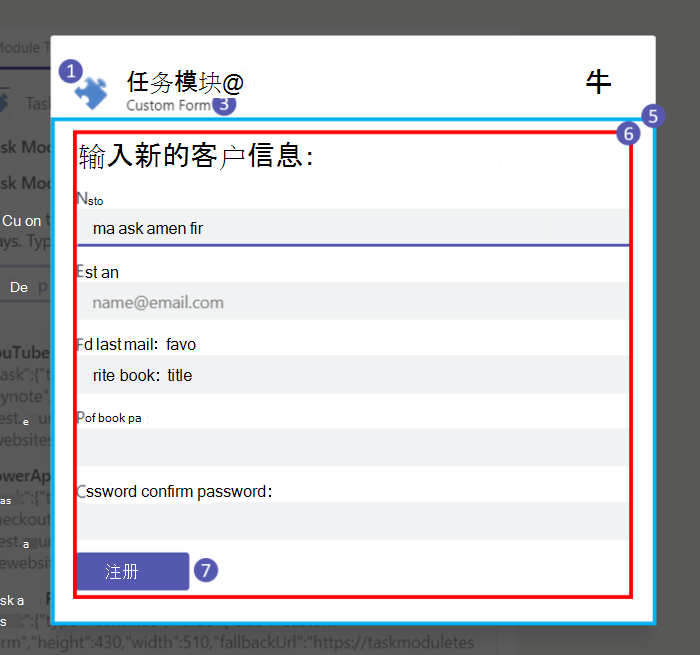
如果 width 和 height 为 small、medium 或 large,则下图中红色矩形的大小是可用空间的比例,width 分别为 20%、50% 和 60%,height 分别为 20%、50% 和 66%:
下一部分提供了使用 Teams SDK 触发和处理对话框的示例。
使用 TaskFetchAction 触发对话
若要打开对话框,请发送带有按钮的 TaskFetchAction 自适应卡。 当用户选中该按钮时,Teams 会向应用发送一个任务提取调用。 每个按钮的数据 value 指定要打开 (的对话框类型,例如, { "data": "AdaptiveCard" }) 。
using System.Text.Json;
using Microsoft.Teams.Apps;
using Microsoft.Teams.Apps.Schema;
using Microsoft.Teams.Cards;

teams.OnMessage(async (context, cancellationToken) =>
{
    var card = new AdaptiveCard
    {
        Body = new List<CardElement>
        {
            new TextBlock("Task Module Invocation from Adaptive Card")
            {
                Weight = TextWeight.Bolder,
                Size = TextSize.Large
            }
        },
        Actions = new List<Action>
        {
            new TaskFetchAction(new Dictionary<string, object?> { { "data", "AdaptiveCard" } })
            { Title = "Adaptive Card" },
            new TaskFetchAction(new Dictionary<string, object?> { { "data", "CustomForm" } })
            { Title = "Custom Form" },
            new TaskFetchAction(new Dictionary<string, object?> { { "data", "MultiStep" } })
            { Title = "Multi-step Form" }
        }
    };

    TeamsAttachment attachment = TeamsAttachment.CreateBuilder()
        .WithAdaptiveCard(JsonSerializer.SerializeToElement(card))
        .Build();

    await context.SendAsync(new MessageActivityInput().AddAttachment(attachment), cancellationToken);
});
处理对话框打开事件
当 Teams 发送任务提取调用时,应用将返回对话内容。 内容可以是自适应卡片或网页 URL。 在 C# 中,将对话框元数据包装在响应中 ContinueTask 。 在 TypeScript 中,返回 TaskModuleResponse 带有 type: 'continue'. 在 Python 中,返回包含 InvokeResponseTaskModuleContinueResponse.
using System.Text.Json;
using Microsoft.Teams.Apps;
using Microsoft.Teams.Apps.Schema;
using Microsoft.Teams.Apps.TaskModules;
using Microsoft.Teams.Cards;

teams.OnTaskFetch(async (context, cancellationToken) =>
{
    await Task.CompletedTask;

    // The button's Action.Submit payload arrives on the invoke value, nested under "data".
    string? data = context.Activity.Value?.Data is JsonElement value
        && value.TryGetProperty("data", out JsonElement dataProp)
            ? dataProp.GetString()
            : null;

    if (data == "CustomForm")
    {
        return TaskModuleResponse.CreateBuilder()
            .WithType(TaskModuleResponseTypes.Continue)
            .WithTitle("Custom Form")
            .WithWidth(510)
            .WithHeight(450)
            .WithUrl($"{botEndpoint}/customform")
            .WithFallbackUrl($"{botEndpoint}/customform")
            .Build();
    }

    if (data == "MultiStep")
    {
        var step1Card = new AdaptiveCard
        {
            Version = "1.5",
            Body = new List<CardElement>
            {
                new TextBlock("Multi-step Form: Step 1") { Wrap = true },
                new TextInput { Id = "name", Label = "Name" }
            },
            Actions = new List<Microsoft.Teams.Cards.Action>
            {
                new SubmitAction { Title = "Next" }
            }
        };

        TeamsAttachment step1Attachment = TeamsAttachment.CreateBuilder()
            .WithAdaptiveCard(JsonSerializer.SerializeToElement(step1Card))
            .Build();

        return TaskModuleResponse.CreateBuilder()
            .WithType(TaskModuleResponseTypes.Continue)
            .WithTitle("Multi-step Form")
            .WithWidth(400)
            .WithHeight(300)
            .WithCard(step1Attachment)
            .Build();
    }

    var dialogCard = new AdaptiveCard
    {
        Version = "1.5",
        Body = new List<CardElement>
        {
            new TextInput { Id = "usertext", Label = "Enter text" }
        },
        Actions = new List<Microsoft.Teams.Cards.Action>
        {
            new SubmitAction { Title = "Submit" }
        }
    };

    TeamsAttachment attachment = TeamsAttachment.CreateBuilder()
        .WithAdaptiveCard(JsonSerializer.SerializeToElement(dialogCard))
        .Build();

    return TaskModuleResponse.CreateBuilder()
        .WithType(TaskModuleResponseTypes.Continue)
        .WithTitle("Adaptive Card: Inputs")
        .WithWidth(400)
        .WithHeight(200)
        .WithCard(attachment)
        .Build();
});
处理对话框提交
当用户按下对话框时 Action.Submit ,Teams 会向应用发送任务提交调用。 您可以通过完成任务、显示消息或打开另一个对话框来做出响应,例如, (链接多步骤表单) 。
using System.Text.Json;
using Microsoft.Teams.Apps.TaskModules;
using Microsoft.Teams.Cards;

teams.OnTaskSubmit(async (context, cancellationToken) =>
{
    var activity = context.Activity;
    var json = JsonSerializer.Deserialize<JsonElement>(JsonSerializer.Serialize(activity));
    var submitData = JsonSerializer.Deserialize<Dictionary<string, object>>(
        json.GetProperty("value").GetProperty("data").GetRawText());
    var submissionType = submitData?.GetValueOrDefault("submissiontype")?.ToString();

    if (submissionType == "multi_step_1")
    {
        var name = submitData["name"]?.ToString();
        var step2Card = new AdaptiveCard
        {
            Body = new List<CardElement>
            {
                new TextBlock("Step 2 of 2 - Your Email") { Size = TextSize.Large, Weight = TextWeight.Bolder },
                new TextInput { Id = "email", Label = "Email", Placeholder = "Enter your email", IsRequired = true }
            },
            Actions = new List<Action>
            {
                new SubmitAction().WithTitle("Submit").WithData(
                    new Union<string, SubmitActionData>(new SubmitActionData
                    {
                        NonSchemaProperties = new Dictionary<string, object?>
                        {
                            { "submissiontype", "multi_step_2" },
                            { "name", name! }
                        }
                    }))
            }
        };

        TeamsAttachment step2Attachment = TeamsAttachment.CreateBuilder()
            .WithAdaptiveCard(JsonSerializer.SerializeToElement(step2Card))
            .Build();

        return TaskModuleResponse.CreateBuilder()
            .WithType(TaskModuleResponseTypes.Continue)
            .WithTitle("Multi-step Form: Step 2")
            .WithWidth(400)
            .WithHeight(300)
            .WithCard(step2Attachment)
            .Build();
    }

    if (submissionType == "multi_step_2")
    {
        await context.SendAsync($"Hi {submitData["name"]}, thanks for submitting! Your email is {submitData["email"]}", cancellationToken);
        return TaskModuleResponse.CreateBuilder()
            .WithType(TaskModuleResponseTypes.Message)
            .WithMessage("Multi-step form completed!")
            .Build();
    }

    var usertext = submitData?.GetValueOrDefault("usertext")?.ToString();
    await context.SendAsync($"You submitted: {usertext}", cancellationToken);
    return TaskModuleResponse.CreateBuilder()
        .WithType(TaskModuleResponseTypes.Message)
        .WithMessage("Thanks for submitting!")
        .Build();
});
键盘和辅助功能指南
对于加载 HTML 内容的基于 URL 的对话框,请确保键盘可访问性:
- 使用 HTML 标记中的 tabindex 属性来控制可以聚焦哪些元素,并使用 Tab 和 Shift-Tab 键定义顺序键盘导航。
- 在 JavaScript 中正确处理对话框页的 Esc 键。
Microsoft Teams 确保键盘导航从对话框标题到 HTML,反之亦然。
代码示例
| 示例名称 | Description | .NET | Node.js | Python |
|---|---|---|---|---|
| 机器人任务模块 | 此示例应用演示如何在 TeamsJS v1.x 中使用对话框 (称为任务模块,) 使用 Teams AI SDK。 | View | View | View |