如果希望单元格保留其原始 string、 或 Boolean 值,并且还公开其他详细信息,double请使用基本单元格值的属性。 例如,餐馆帐单可以保留一个数字进行计算,同时在数据类型卡和公式中显示 Food、DrinksTax、 和 Tip 。
本文介绍如何使用属性创建基本值、更新现有值、设置数字值的格式以及添加嵌套数据类型。
- 如果你不熟悉 Excel 数据类型,请从 Excel 加载项中的数据类型概述 开始。
- 查看在 Excel 外接程序中使用数据类型中的 JSON 架构。
- 当数据来自外部源并且应独立刷新时,请在 Excel 外接程序中创建链接实体数据类型 。
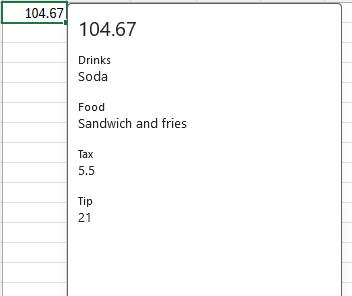
以下示例显示添加了名为 Drinks、、 FoodTax和 Tip的字段的数字14.67。
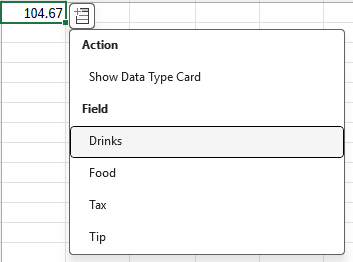
当用户打开数据类型卡时,他们可以看到额外的字段。
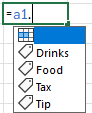
还可以使用点表示法在公式中引用具有属性的基本值。
创建具有属性的单元格值
使用 Range.valuesAsJson 在一个赋值中创建值并定义其属性。 以下示例将数字写入 , A1 并将帐单详细信息添加为属性。
async function createNumberProperties() {
  await Excel.run(async (context) => {
    const sheet = context.workbook.worksheets.getActiveWorksheet();
    const range = sheet.getRange("A1");

    range.valuesAsJson = [
      [
        {
          type: Excel.CellValueType.double,
          basicType: Excel.RangeValueType.double,
          basicValue: 14.67,
          properties: {
            Food: {
              type: Excel.CellValueType.string,
              basicType: Excel.RangeValueType.string,
              basicValue: "Sandwich and fries"
            },
            Drinks: {
              type: Excel.CellValueType.string,
              basicType: Excel.RangeValueType.string,
              basicValue: "Soda"
            },
            Tax: {
              type: Excel.CellValueType.double,
              basicType: Excel.RangeValueType.double,
              basicValue: 5.5
            },
            Tip: {
              type: Excel.CellValueType.double,
              basicType: Excel.RangeValueType.double,
              basicValue: 21
            }
          }
        }
      ]
    ];

    await context.sync();
  });
}
注意
某些单元格值会根据用户的区域设置而更改。
valuesAsJsonLocal 属性提供本地化支持,并且可用于与 valuesAsJson 相同的所有对象。
向现有值添加属性
如果单元格已包含基本值,并且你想要在不更改其基础类型的情况下扩充它,请使用此模式。 首先,使用 valuesAsJson读取值。 然后,在添加属性之前,验证该值是否为 string、 double或 Boolean 。
以下示例获取 中的 A1数字,保留任何现有属性,并添加 属性 Precision 。
async function addPropertyToNumber() {
  await Excel.run(async (context) => {
    const sheet = context.workbook.worksheets.getActiveWorksheet();
    const range = sheet.getRange("A1");

    range.load("valuesAsJson");
    await context.sync();

    const cellValue = range.valuesAsJson[0][0] as any;

    // Only apply this property to a double.
    if (cellValue.basicType === Excel.RangeValueType.double) {
      cellValue.properties = {
        ...(cellValue.properties ?? {}),
        Precision: {
          type: Excel.CellValueType.double,
          basicValue: 4
        }
      };

      range.valuesAsJson = [[cellValue]];
      await context.sync();
    }
  });
}
选择基本值或实体值
向 string、 Boolean和 double 基本类型添加属性类似于向实体值添加属性,但行为在几个重要方面有所不同。
- 当公式应继续将单元格视为其基础值时,使用具有属性的基本值。 基本类型没有错误回退,因此计算始终可以继续。 例如,
=SUM(A1:A3)如果 是 具有属性 的双精度值和A2A3为标准数字,则仍返回6A1。 - 当计算使用基本值时,结果仅包括基础值。 结果不会保留源属性。
- 如果未为基本值指定图标,则单元格不显示任何图标。 未指定图标时,实体值会显示默认图标。
带格式数字值
可以使用 属性将数字格式应用于 类型的CellValueType.doublenumberFormat值。 以下示例创建一个货币值并添加一个描述性属性。
async function createCurrencyValue() {
  await Excel.run(async (context) => {
    const sheet = context.workbook.worksheets.getActiveWorksheet();
    const range = sheet.getRange("A1");

    range.valuesAsJson = [
      [
        {
          type: Excel.CellValueType.double,
          basicType: Excel.RangeValueType.double,
          basicValue: 24,
          numberFormat: "$0.00",
          properties: {
            Name: {
              type: Excel.CellValueType.string,
              basicValue: "Price"
            }
          }
        }
      ]
    ];

    await context.sync();
  });
}
此数字格式是值的默认格式。 如果用户或其他代码向单元格应用不同的格式,则该格式将替代值的 numberFormat。
自定义卡布局
具有属性的基本值使用默认数据类型卡。 若要以更有用的方式显示属性,请将 属性添加到 layouts JSON 说明并定义自定义卡布局。
有关布局选项和示例,请参阅 将卡片与单元格值数据类型配合使用。
嵌套数据类型
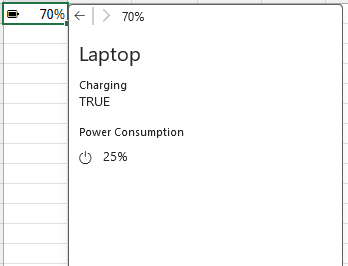
可以将其他数据类型嵌套在基本值内,包括实体值和其他 string、 double和 Boolean 值。 以下示例将计算机电池电量值写入 , A1然后添加一个嵌套实体,用于描述计算机及其电源设置。
重要
嵌套实体值时, referencedValues 仅在根级实体上支持数组。 嵌套实体不得定义自己的 referencedValues。 如果嵌套实体包含 referencedValues,Excel 将拒绝单元格值,并返回该单元格中的 #VALUE! 错误。 若要引用嵌套实体中的其他值,请使用指向根实体数组的 referencedValuesReferenceCellValue 索引。 有关详细信息,请参阅 实体值。
async function createNumberWithNestedEntity() {
  await Excel.run(async (context) => {
    const sheet = context.workbook.worksheets.getActiveWorksheet();
    const range = sheet.getRange("A1");

    range.valuesAsJson = [
      [
        {
          type: Excel.CellValueType.double,
          basicType: Excel.RangeValueType.double,
          layouts: {
            compact: {
              icon: "Battery10"
            }
          },
          basicValue: 0.7,
          numberFormat: "00%",
          properties: {
            Computer: {
              type: Excel.CellValueType.entity,
              text: "Laptop",
              properties: {
                "Power Consumption": {
                  type: Excel.CellValueType.double,
                  basicType: Excel.RangeValueType.double,
                  basicValue: 0.25,
                  numberFormat: "00%",
                  layouts: {
                    compact: {
                      icon: "Power"
                    }
                  },
                  properties: {
                    Plan: {
                      type: Excel.CellValueType.string,
                      basicType: Excel.RangeValueType.string,
                      basicValue: "Balanced"
                    }
                  }
                },
                Charging: {
                  type: Excel.CellValueType.boolean,
                  basicType: Excel.RangeValueType.boolean,
                  basicValue: true
                }
              }
            }
          }
        }
      ]
    ];

    await context.sync();
  });
}
下图显示了嵌套笔记本电脑实体的值和数据类型卡。
兼容性
在不支持数据类型功能的早期版本的 Excel 上,用户会看到“ 数据类型不可用” 警告。 值仍显示在单元格中,并继续使用公式和其他 Excel 功能。 如果值是带格式的数字,则计算使用 basicValue 而不是带格式的数字。
在早于 Office 2016 的 Excel 版本中,该值显示在单元格中,没有错误,并且无法与基本值区分开来。