Note
Access to this page requires authorization. You can try signing in or changing directories.
Access to this page requires authorization. You can try changing directories.
Data binding in ontology (preview) connects the schema of entity types, relationship types, and properties to concrete data sources that drive enterprise operations and analytics.
Important
This feature is in preview.
By using data binding, you can:
- Integrate data into a semantic layer without copying source data
- Enrich entity types with up-to-date contextual information from batch and real-time sources
- Provide a semantic backbone for AI agents and automation to support reasoning, decision-making, and actions across the enterprise
Prerequisites
Before binding data to your ontology, make sure you have the following prerequisites:
- A Fabric workspace with a Microsoft Fabric-enabled capacity.
- Users can create ontology (preview) items and Users can create Fabric items enabled on your Fabric tenant.
- An ontology (preview) item with entity types created.
- Data that you prepared according to these guidelines:
- The data is organized and has gone through any necessary ETL required by your business. It contains all the information required to model it. For more information, see Core concept: Data binding.
- The data is in Microsoft Fabric. Supported sources include eventhouse, KQL database, lakehouse, mirrored database, semantic model, SQL database, or warehouse.
- For semantic models, you need both Read and Build permissions to bind the data to an ontology.
Add data binding
You can start a data binding from either the Home configuration canvas or the Configure tab of the entity type details.
On the Home configuration canvas, select ... next to an entity type name to open its options menu and select Bind data.

On the Configure page, select Manage property bindings > Add properties or Add binding and properties. You can also select the Add properties from data button if the entity type has no properties yet.

The Property binding page opens. Select Add to add a data source.

Select your data source table from the OneLake catalog.
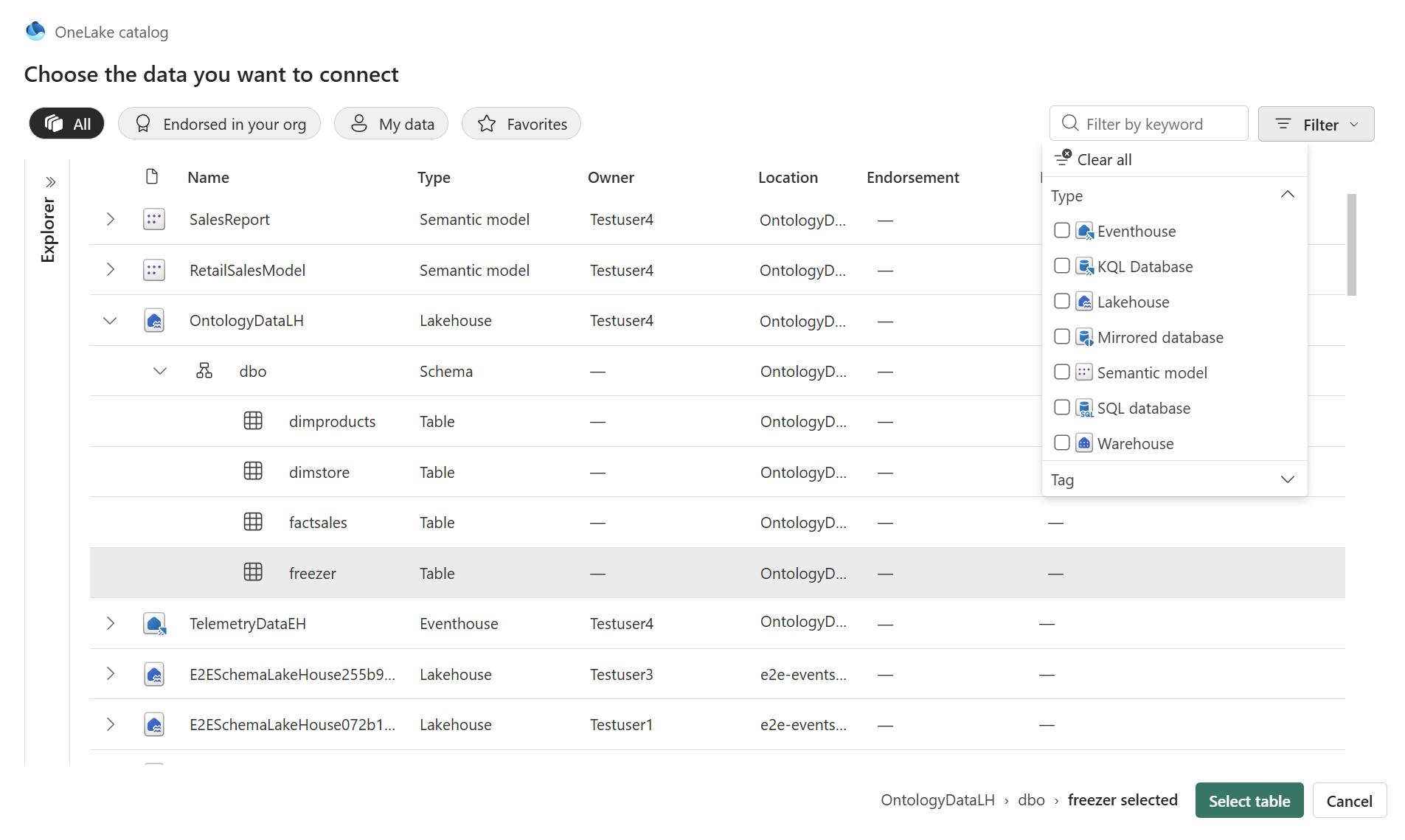
The data source loads.

Select Entity type properties to see properties of the entity type. The columns from the source table automatically populate as proposed properties.

In the Properties section, add, rename, or delete properties as needed. Property names can match the source column names or be different. If you have existing properties defined on the entity type, you can select their names from the dropdown menu.
When you finish configuring properties, select Create to save the data binding. You see a banner confirming that Entity type updated successfully.
Close the property binding page by selecting Cancel. Closing the binding page returns you to the Configure page.
In the Configure page, verify the bindings by reviewing the properties in the Properties pane and confirming that they're bound to the correct data sources.


Add more data bindings
Follow these steps to add more bindings after the first binding is created.
In the Configure page, expand Manage property bindings and select Add binding and properties again to reopen the binding configuration.
On the Entity type properties page, select Add and select your data table from the OneLake catalog. The system adds the new data source as a secondary data source.
The data source loads and asks you to define the relationship between the primary and secondary data source. Select the common column from each table that allows them to relate to each other. Select Save to save your progress.

Select Entity type properties. The system automatically adds all the columns from the new table to the property list, where they appear alongside any properties that you added to the entity previously. If any columns exist in both source tables with the same name, the system adds a _2 suffix to the default property names of the columns from the new data source. Make any changes as needed and Save the entity type when you're done.
Confirm that the entity type updated successfully, then select Cancel to close the configuration options.
Back in the Configure page, verify the new properties and their binding to the data source.


Edit or delete data binding
To edit or delete data bindings, start in the Configure page. Select Manage property bindings > + Add binding and properties.

The configuration page reopens, where you can edit binding details or delete binding data sources.
Note
To see updates from upstream data sources, such as new rows, you need to manually refresh the ontology item. For more information, see refresh the graph model.
Supported data source types
The following data source types support data binding in ontology (preview):
- Eventhouse
- KQL database
- Lakehouse
- Mirrored database
- Semantic model
- SQL database
- Warehouse

Supported property types
The following table lists the supported property types for data that you can bind to properties in ontology (preview).
| Ontology property value type | Supported lakehouse types | Supported eventhouse types |
|---|---|---|
| integer | tinyint, smallint, bigint, integer, long, short | int, long |
| boolean | boolean | bool |
| datetime | datetime, date, timestamp | datetime |
| double | double, decimal, float | decimal, real |
| string | char, decimal(p, s), string, array, binary, binary16, byte, map, object, struct, timestampint64, timestamp_ntz | dynamic, string, guid, timespan |
The following table shows supported source column value types that you can use for the timestamp selection in a time series binding.
| Ontology configuration | Lakehouse and eventhouse source column value type |
|---|---|
| Timestamp | datetime, date, timestamp |
The following table shows supported property types that you can use as the entity type key.
| Ontology configuration | Ontology property value type |
|---|---|
| Entity type key | string, integer |
If your data contains other data types, perform ETL to convert the data to one of the supported types before bringing the data to ontology.