Note
Access to this page requires authorization. You can try signing in or changing directories.
Access to this page requires authorization. You can try changing directories.
Important
MCP and API plugins provide actions within declarative agents. They're not standalone installable plugin packages: only the containing agent can access their functions and tools. For information about the package and action manifest relationship, see Plugins and declarative agent actions.
Tip
Recommended: Start with Work IQ Dev Tools for supported pro-code declarative-agent and plugin scenarios. See the WIQD quickstart. Toolkit-based instructions remain available for existing projects and workflows that require them. Check capability and target-experience support before choosing a tool: WIQD doesn't target custom engine agents.
API plugins let a declarative agent call a REST API. Use the Microsoft 365 Agents Toolkit to generate an agent project, an API plugin manifest, and a REST API implementation as a starting point.
- Requirements specified in Requirements for Copilot extensibility options
- Visual Studio Code
- Microsoft 365 Agents Toolkit
- Node.js 20.x or 22.x. To confirm your installed version, run
node --version.
Create the agent and API
Note
The screenshots and user-interface references in this article use a release version of Microsoft 365 Agents Toolkit. Prerelease versions might differ from the user interface shown.
Open Visual Studio Code. If Agents Toolkit isn't already installed, see Install Agents Toolkit for installation instructions.
Select the Microsoft 365 Agents Toolkit icon in the left-hand Activity Bar.
Select Create a New Agent/App in the Agents Toolkit task pane.
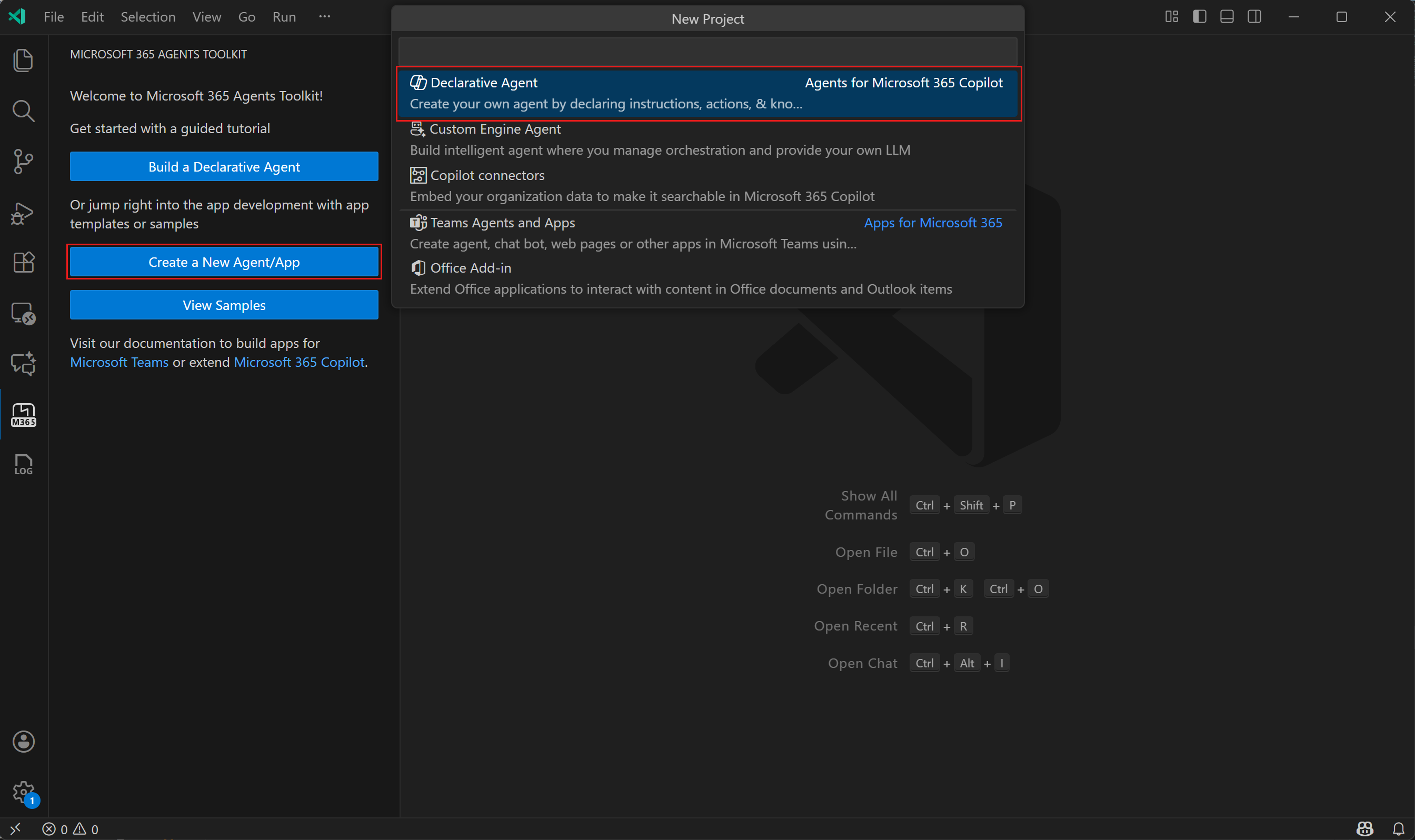
Select Declarative Agent.
Select Add an Action, then select Start with a New API.
Select OAuth for the Authentication Type.
Select your preferred programming language: JavaScript or TypeScript. This guide assumes TypeScript.
Choose a location for the agent project.
Enter
Repairs Agentas a name for your agent project.
When you complete these steps, Agents Toolkit generates the agent and API project files, including the API plugin manifest, and opens the project in a new Visual Studio Code window. For details, see the README.md file in the generated project's root directory.
Run the API and sideload the agent
In the Visual Studio Code window with the agent project loaded, select the Microsoft 365 Agents Toolkit icon in the left-hand Activity Bar.
In the Accounts pane, select Sign in to Microsoft 365. (If you're already signed in continue to the next step).
Confirm that both Custom App Upload Enabled and Copilot Access Enabled display under your Microsoft 365 account. If they don't, check with your organization admin. See Requirements for Copilot extensibility options for details.
Select the Run and Debug icon in the left-hand Activity Bar.
Select either Debug in Copilot (Edge) or Debug in Copilot (Chrome), then press F5 to start debugging.
Agents Toolkit builds the project, creates an app package containing the agent and its API plugin configuration, and sideloads the agent for your user account. It also starts the API locally. A new browser window opens to the Microsoft Teams app.
Test the agent's API action
In Microsoft Teams in your browser, select Copilot.
Select Repairs Agentlocal in the Agents list on the right-hand side. If the list isn't available, select the Copilot chats and more icon in the top right corner.
Send a message to Copilot about repairs. For example, try
Which repairs are assigned to Karin?.
At this point, the REST API is running locally on your development machine without authentication. To add authentication, deploy the API to Azure.
Deploy to Azure and enable authentication
Select the Microsoft 365 Agents Toolkit icon in the left-hand Activity Bar.
In the Lifecycle pane, select Provision.
When asked for a resource group name, either accept the default or change it as desired and press Enter.
Select a location for the resource group.
Review the message in the dialog. If everything looks correct, select Provision to continue.
Wait for the provisioning steps to complete, then select Deploy in the Lifecycle pane.
When you complete these steps, you deploy the REST API as an Azure Function with authentication. The agent calls that hosted API through its API plugin configuration.
Test the agent with the authenticated API
In Microsoft Teams in your browser, select Copilot.
Select Repairs Agentdev in the Agents list on the right-hand side.
Send a message to Copilot about repairs. For example, try
Which repairs are assigned to Issac?.