Note
Access to this page requires authorization. You can try signing in or changing directories.
Access to this page requires authorization. You can try changing directories.
MCP and API plugins are custom actions that enable declarative agents in Microsoft 365 Copilot to interact with Model Context Protocol (MCP) servers or REST APIs that have an OpenAPI description. By using one of these plugins, users can ask a declarative agent to query an MCP server or REST API for information and, when supported, create, update, and delete data and objects through natural language prompts.
This article uses plugin for the technical MCP or API custom action used by a declarative agent. For the customer-facing plugin product, package, registry, and lifecycle, see Plugins for Microsoft 365 Copilot.
During Build or reuse, use this article to choose an MCP or API action and understand how the orchestrator invokes it. You finish with the technical action model and a product procedure to implement it. The resulting action is a dependency of the agent, not a separate public-distribution promise.
Important
MCP and API plugins provide actions within declarative agents. They're not standalone installable plugin packages: only the containing agent can access their functions and tools. For information about the package and action manifest relationship, see Plugins and declarative agent actions.
An API or MCP plugin uses a plugin manifest that Copilot reads to learn about the API or MCP server available to the agent. Copilot can then decide when the agent should use that integration to answer a prompt. To learn more about this manifest, see API and MCP plugin manifest schema. The installable package uses a separate Microsoft 365 app manifest.
How Copilot discovers MCP server tools
For plugins based on an MCP server, Copilot resolves the plugin's tools dynamically at runtime by default, directly from the MCP server. Dynamic tool discovery means you get the latest tools the MCP server exposes without waiting for the agent to be repackaged and republished. When building the agent, a developer can optionally pin a fixed set of tools in the plugin manifest instead. REST API plugins always use the tools defined in the plugin manifest. For more information, see Build plugins from an MCP server for Microsoft 365 Copilot and Dynamic tool discovery for MCP plugins in Microsoft 365 Copilot.
This default applies to MCP plugins used as declarative-agent actions. For a plugin that references a remote MCP server through agentConnectors in the Microsoft 365 app manifest, dynamic tool discovery requires app manifest version 1.29 or later and a host that permits it. For more information, see Configure remote MCP servers for Microsoft 365 Copilot plugins.
Plugin example
Consider a budgets MCP server that allows for querying and creating budgets, charging expenses, or adding funds to existing budgets. The prompt "How much is left in the Contoso travel budget" could trigger a budget plugin, invoking the get-budgets tool.
POST /mcp
Content-Type: application/json

{
  "method": "tools/call",
  "params": {
    "name": "get-budgets",
    "arguments": {
      "budgetName": "contoso travel"
    }
  }
}
Copilot uses the response from the tool result to generate its response: "The Contoso travel budget currently has $5,000 in available funds. If you need to allocate funds to specific categories or track expenses, I can assist you with that as well. Just let me know how I can help!"
The prompt "Charge $500 to the Contoso travel budget for Megan's airline ticket" could be translated to the following MCP tool call.
POST /mcp
Content-Type: application/json

{
  "method": "tools/call",
  "params": {
    "name": "charge-budget",
    "arguments": {
      "budgetName": "contoso travel",
      "amount": 500,
      "description": "Megan's airline ticket"
    }
  }
}
Copilot responds to the user by using the information returned: "The charge of $500 for Megan's airline ticket is successfully processed. The Contoso travel budget now has $4,500 remaining in available funds. If you need to make any more transactions or require further assistance with your budget, please let me know!"
How plugins work
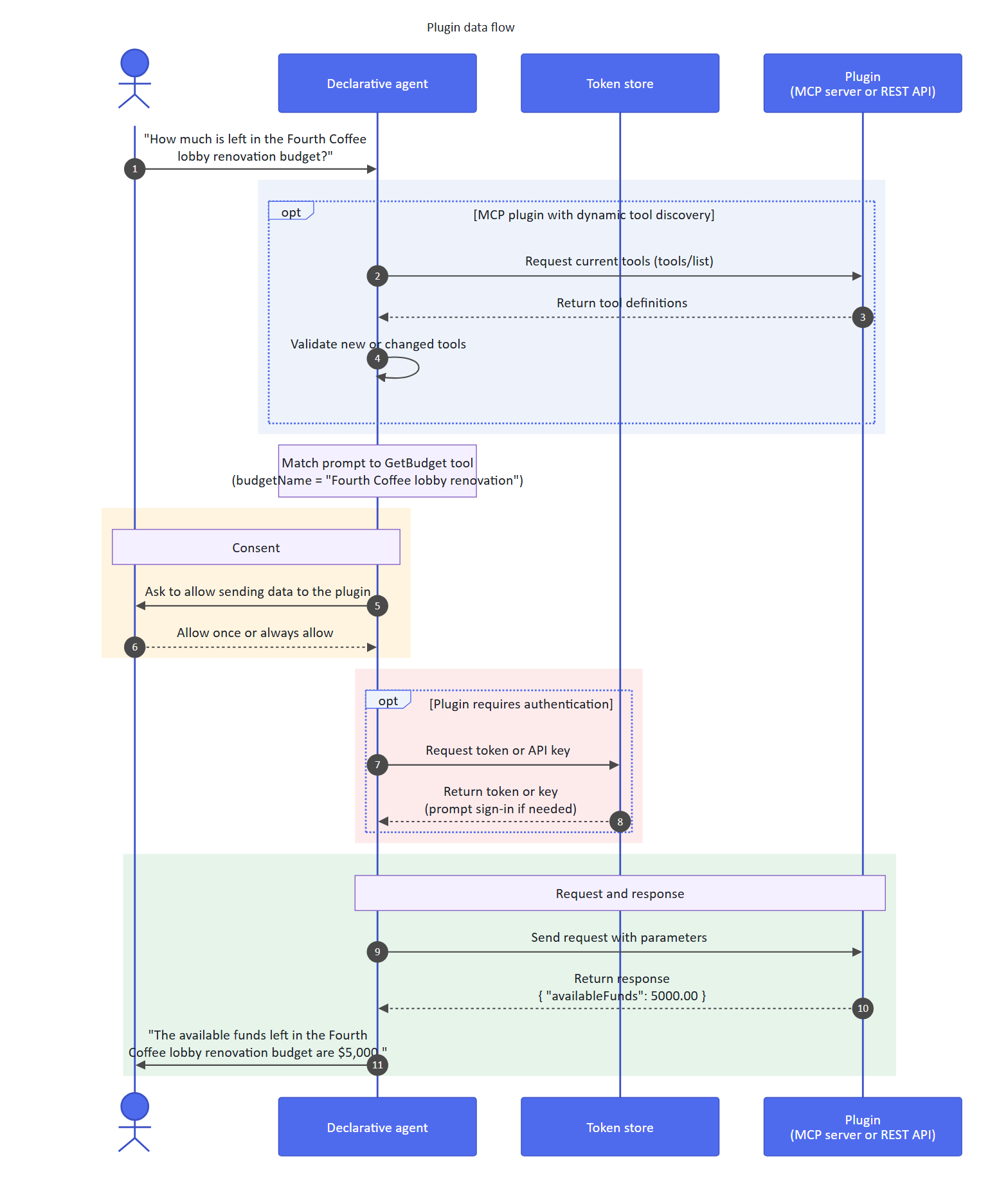
The user asks the agent "How much is left in the Fourth Coffee lobby renovation budget?"
For an MCP plugin that uses dynamic tool discovery, the agent fetches the current tool definitions from the plugin's MCP server at runtime and validates any new or changed tools before using them. For a plugin with a pinned tool set, or for a REST API plugin, the agent uses the tools defined in the plugin manifest instead.
The agent identifies a budget-related plugin from its available plugins that has an MCP server tool or API
GetBudgetto get budget details. It maps parts of the user's question to the parameters of the function:budgetName="".The agent asks the user to allow it to send
Fourth Coffee lobby renovationto the plugin.The user chooses to allow data to be shared with the plugin once, or chooses to always allow data to be shared for this function.
If the plugin's MCP server or API requires authentication, the plugin requests a token or API key from the token store.
The token store returns a token or key. If needed, the token store causes the agent to prompt the user to sign in.
The agent sends a request to the plugin's MCP server or API, which is hosted outside of Microsoft 365.
The MCP server or API returns a response.
{
  "name": "Fourth Coffee lobby renovation",
  "availableFunds": 5000.00
}
The agent generates a response based on the MCP server or API response.
The agent sends the response "The available funds left in the Fourth Coffee lobby renovation budget are $5,000."
Confirming actions
Copilot asks the user before sending any data for the first time to a plugin.
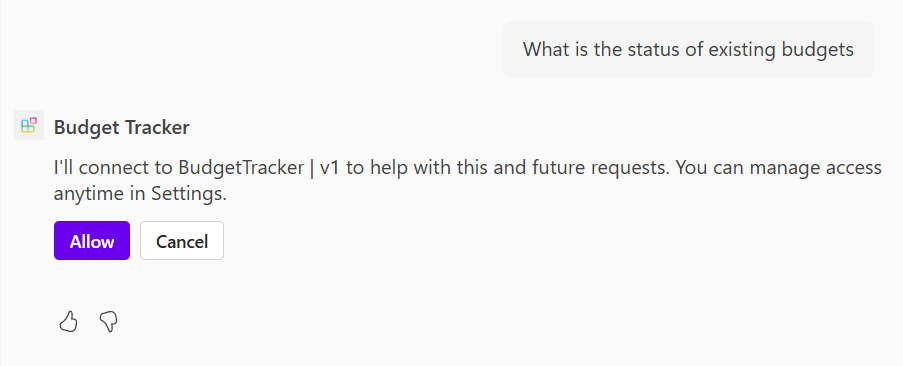
After the user confirms the connection, MCP server tools and APIs that only retrieve data don't require confirmation, while tools and APIs that modify data do. Plugin developers can override these defaults. For details, see Confirmation prompts for MCP and API plugins for Microsoft 365 Copilot.
Customizing response presentation
Copilot generates conversational responses by using data from the MCP server or API responses. Plugins can customize how this data is presented, and the mechanism depends on the plugin type.
MCP plugins can deliver rich, interactive responses by using MCP apps - UI widgets that the MCP server returns alongside the tool result at runtime. Because the widget is delivered with the tool response rather than defined in the manifest, MCP apps work whether the plugin uses a pinned set of tools or dynamic tool discovery.
API plugins can provide Adaptive Card templates in the plugin manifest to display data in a structured way. Because the templates are defined against the operations declared in the manifest, this approach applies to API plugins and to MCP plugins that use a pinned set of tools.
For source-linked citations on any plugin type, Copilot uses response semantics and can infer citation metadata automatically from the tool or API response. Automatic inference is especially useful for MCP plugins that use dynamic tool discovery, where tools are resolved at runtime and there's no manifest tool definition to configure. For more information, see Show citations with response semantics.

URL handling in action responses
The Microsoft 365 Copilot chat experience might render URLs returned as part of action responses - whether from MCP plugins, API plugins, connectors, or flows - as clickable links. The Copilot runtime controls this behavior and doesn't evaluate it against any domains the plugin declares (such as the servers section of an API plugin's OpenAPI description).
Platform security, trust, and policy rules govern URL rendering behavior for action responses and it might change over time. Don't rely on clickable URLs in action responses for production-critical scenarios.
Help the Copilot orchestrator choose your agent's actions
Describe the API or MCP integration, its functions or tools, and their inputs accurately so the orchestrator can select the right action for the user's request. These descriptions concern the agent's actions, not the name or store description of the outer plugin package.
| Action integration | Where to describe it | Learn more |
|---|---|---|
| API plugin | Plugin manifest and OpenAPI operation and parameter descriptions | Create effective OpenAPI descriptions |
| MCP plugin | Plugin manifest and MCP tool descriptions; tool definitions come from the server at runtime or are pinned in the manifest | Dynamic tool discovery and pinned tools |
Functions and MCP tools aren't the same as the reusable instruction files described in Skills as plugin capabilities.
Build a declarative agent with API or MCP actions
For professional development, start with Work IQ Dev Tools. Choose a documented environment first, then add a tool in the following list when you need its project-generation or integration capabilities:
- Work IQ Dev Tools is the recommended tool. Use
wiqd agent add actionto add a supported OpenAPI or remote MCP action to a declarative-agent project. - Existing Toolkit-based walkthroughs remain available for an MCP server, an OpenAPI description, or a new REST API. Follow those procedures when working with a Toolkit project.
- Kiota can generate an API plugin manifest from an existing OpenAPI description.
The API or MCP plugin manifest configures the agent's action integration. Package and distribute the containing agent through its supported app-package route; the action manifest isn't an independently installable plugin package.
Tip
Work IQ Dev Tools is generally available. wiqd agent add action adds an action to a declarative-agent project, and wiqd agent validate --mode source runs offline checks on saved agent source. A passing source check doesn't establish runtime or OpenAPI endpoint reachability, authentication correctness, or final-package acceptance. If you omit --mode, validation defaults to package, which uploads a copy of an existing ZIP and might require sign-in. For validation modes and coverage, see the WIQD command reference and Validation and MVL.
Limitations
These limits concern API and MCP plugins used as declarative-agent actions, not the number of skills, agents, or connectors in an installable plugin package.
When a declarative agent includes up to five plugins defined in the declarative agent manifest, the agent always injects the plugins into the prompt. When the agent includes more than five plugins, it uses semantic matching. Semantic matching is based on the plugin's description, not on any of the individual functions or tools within the plugin itself.
A plugin can include an unlimited number of functions or MCP tools. All of a matched plugin's functions or tools are returned, even if only one is matched. For an MCP plugin that uses dynamic tool discovery, the tools resolved from the MCP server at runtime count toward this total. Due to token window limits, the quality of the responses might degrade if more than 10 functions or tools are included.
The token window for inputs to and outputs from a plugin truncates large content. The functional limit is subject to change as models improve and depending on any system overhead. Optimize for small token lengths or opt for extensibility options that allow for streaming large content if necessary.
Next step
Implement the selected MCP action or API action. After the components work individually, enter Package & test with Integrate and test your components.
Related content
- Build plugins from an MCP server for Microsoft 365 Copilot
- Add MCP apps to declarative agents in Microsoft 365 Copilot
- Dynamic tool discovery for MCP plugins in Microsoft 365 Copilot
- Build API plugins from an existing API for Microsoft 365 Copilot
- Build API plugins with a new API for Microsoft 365 Copilot
- API and MCP plugin manifest schema for Microsoft 365 Copilot
- Write effective instructions for declarative agents with API plugins